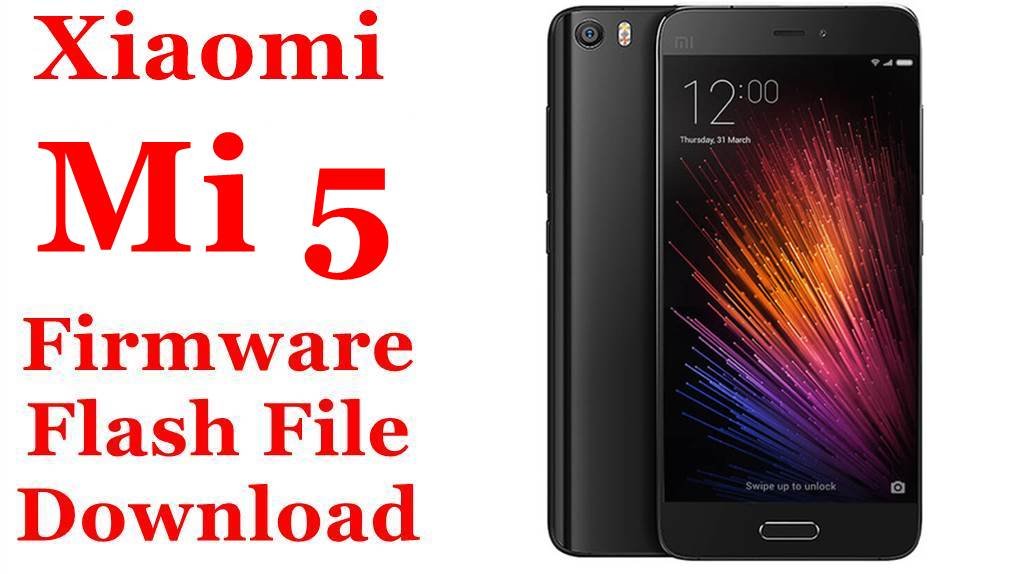
Xiaomi Mi 5 (gemini) Firmware Flash File Download [Stock ROM]
Xiaomi Mi 5 (codename gemini) was Xiaomi’s flagship device that showcased premium design with glass and metal construction, Snapdragon 820 performance, and innovative features for its time. If your device is experiencing performance issues, battery degradation, or camera problems, flashing the correct stock firmware can help restore its original functionality. This page provides official fastboot ROMs for both Chinese and Global variants, a optimized Xiaomi.eu ROM, and compatible TWRP recovery options.
Important Note: The Mi 5 (gemini) was the first Xiaomi device with a physical home button containing the fingerprint sensor. It should not be confused with later models like Mi 5s (capricorn) which has under-glass fingerprint technology. Always confirm your codename is gemini before flashing.
Quick Device Specs
- Device: Mi 5 (gemini)
- Release year: 2016
- Chipset: Qualcomm Snapdragon 820 (MSM8996)
- Display: 5.15″ IPS LCD, 1080p
- Battery: 3000 mAh (Non-removable)
- Key Feature: Ceramic back option (Pro model), physical fingerprint sensor
- Camera: 16MP with 4-axis OIS
- Original OS: Android 6.0, MIUI 7
- Final Official MIUI: MIUI 10 (Android 8.0 Oreo)
Required Downloads
| File / Tool | Download Link |
|---|---|
| Xiaomi Mi Flash Tool | Download Latest Version |
| Qualcomm QDLoader Drivers | Download Drivers (For EDL mode) |
| Bootloader Unlock Tool | Official Mi Unlock Page (Mandatory) |
| ADB and Fastboot Tools | Download from Google |
Fastboot ROMs & Tools
| Type | Build / Version | Android | Release Date | Download | Size |
|---|---|---|---|---|---|
| China Stable (CN) | V10.2.1.0.OAACNXM | 8.0 (Oreo) | 2018-12-24 | Download | ~1.8 GB |
| Global Stable | V10.2.2.0.OAAMIXM | 8.0 (Oreo) | 2019-01-15 | Download | ~1.8 GB |
| Xiaomi.eu (Custom) | V11.0.2.0.OAACNXM | 8.0 (Oreo) | — | Download | ~1.2 GB |
| TWRP Recovery (Official) | 3.7.0_9-0 | — | — | Download | ~22 MB |
| TWRP Recovery (wzsx150) | 3.3.0-0511 | — | — | Download | ~18 MB |
How to Flash via Fastboot (Mi Flash Tool)
- Unlock your bootloader using the official Mi Unlock tool. This is a mandatory first step.
- Extract the downloaded .tgz firmware file to a folder on your PC.
- Open Mi Flash Tool. Click Select and choose the extracted ROM folder.
- With your phone powered off, boot into Fastboot mode (Hold Volume Down + Power). Connect it to the PC.
- In Mi Flash Tool, choose the clean all option. Avoid “clean all and lock” unless you are absolutely certain you are flashing the correct stock ROM for your device’s original region.
- Click Flash and wait for the process to complete. The first boot may take 5-10 minutes.
FAQs
Q1. Why is my battery life poor even with a new battery?
The Snapdragon 820, while powerful for its time, is not very power-efficient by modern standards. The 3000mAh battery capacity is also relatively small. Factors affecting battery life include:
- Aging battery despite replacement (quality varies)
- Background services on older Android version
- Display brightness and usage patterns
- Cellular signal strength
A clean flash can help optimize software efficiency, but expect moderate battery life at best.
Q2. What’s the difference between Mi 5 standard, Pro, and Prime versions?
All variants share the same codename (gemini) and firmware, but differ in materials:
- Standard: 3GB RAM + 32GB storage, glass back
- Prime: 3GB RAM + 64GB storage, glass back
- Pro: 4GB RAM + 128GB storage, ceramic back
Their firmware is compatible across all variants.
Q3. Can I upgrade to newer Android versions on my Mi 5?
Yes! The Snapdragon 820 has excellent custom ROM support:
- LineageOS 16.0 (Android 9)
- LineageOS 17.1 (Android 10)
- LineageOS 18.1 (Android 11)
- Some Android 12 and even 13 builds
These provide significantly better performance, security, and modern features compared to the stock Android 8.0.
Q4. Why is my fingerprint sensor sometimes unresponsive?
The physical home button/fingerprint sensor can develop issues due to:
- Software/driver corruption (fixed by clean flash)
- Physical wear and tear of the button mechanism
- Moisture or debris under the button
- Calibration data loss
A clean flash often resolves software-related fingerprint issues. If problems persist, the button assembly may need replacement.
Troubleshooting (Gemini-Specific)
- “Antirollback check error” in Mi Flash Tool: The device has Anti-Rollback (ARB) protection. You cannot flash older ROM versions. Check your current ARB version with
fastboot getvar antiand ensure you’re flashing a ROM with the same or higher version number. - Device not detected in Fastboot mode: This is usually a driver issue. Install the latest ADB/fastboot drivers and try a different USB cable and port (preferably USB 2.0). Check device detection with
fastboot devicesin the command prompt. - Phone boots directly to Fastboot mode: This indicates a corrupted
boot.imgor system partition. Flash the complete stock ROM using the “clean all” option in Mi Flash Tool to restore all partitions. - Camera OIS not working or making noise: The 4-axis OIS system can fail physically. A clean flash can rule out software issues. If the camera makes grinding noises or images are shaky, the OIS module likely needs replacement.
- Home button/fingerprint sensor not working: If clean flash doesn’t resolve button issues, try: 1) Cleaning around the button, 2) Testing in hardware test mode (
*#*#6484#*#*). Persistent issues indicate hardware failure. - Performance throttling: The Snapdragon 820 can throttle under load. Ensure your device is not overheating. Consider replacing thermal paste if comfortable with disassembly. A clean flash can also help improve performance management.