
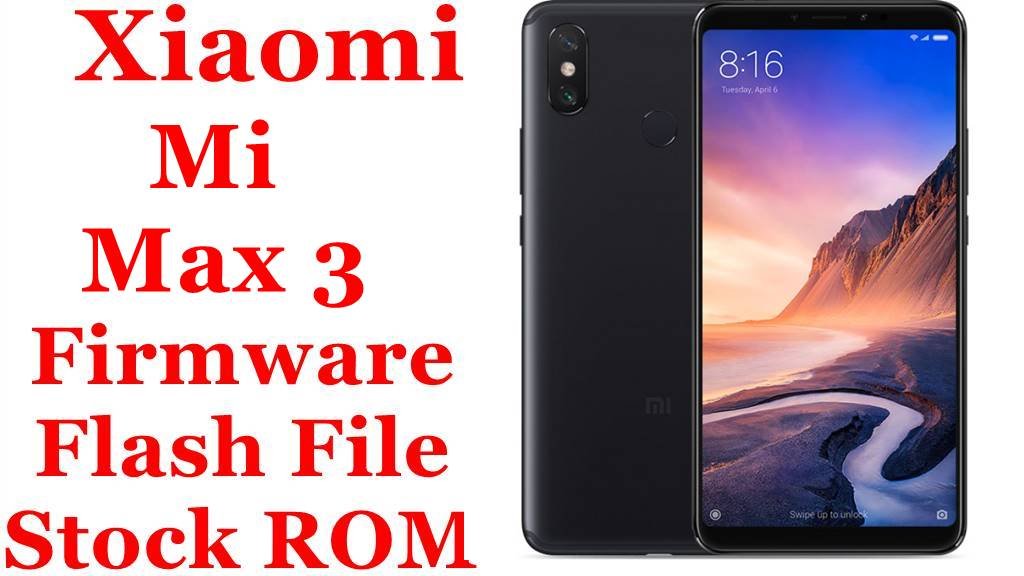
Xiaomi Mi Max 3 Firmware Flash File Download [Stock ROM]
The Mi Max 3 (codenamed nitrogen) was Xiaomi’s phablet flagship featuring a massive 6.9-inch display, Snapdragon 636 processor, and enormous 5500mAh battery. If your device is experiencing display problems, battery drain issues, performance lag, or software instability, this guide provides the official MIUI fastboot ROMs and custom recovery needed for complete system restoration.
Important Notice: Verify your device codename is nitrogen before flashing. The Mi Max 3 is distinct from previous Max series with its larger display and different chipset. Flashing incorrect firmware will result in a non-functional device.
Quick Device Specifications
- Device: Mi Max 3 (nitrogen)
- Release Year: 2018
- Chipset: Qualcomm Snapdragon 636 (14nm)
- Display: 6.9″ IPS LCD, 1080 × 2160 pixels (18:9)
- Camera: 12MP + 5MP dual rear, 8MP front camera
- Battery: 5500 mAh with Quick Charge 3.0
- Original OS: Android 8.1 Oreo, MIUI 9
- Special Feature: Giant screen optimized for media consumption and gaming
Essential Downloads & Tools
| File / Tool | Download Link |
|---|---|
| Xiaomi Mi Flash Tool | Download Stable Version |
| Qualcomm USB Drivers | Download Latest Drivers |
| TWRP Recovery | TWRP 3.3.1 for nitrogen |
| Mi Unlock Tool | Bootloader Unlock |
Official Fastboot ROM Collection
| Region / Variant | Build Version | Android | Release Date | Download Link |
|---|---|---|---|---|
| China Stable | V12.5.1.0.QEDCNXM | 10.0 | 2021-06-16 | Download |
| Global Stable | V12.0.1.0.QEDMIXM | 10.0 | 2020-10-13 | Download |
| Russia Stable | V12.0.1.0.QEDRUXM | 10.0 | 2020-10-12 | Download |
| Xiaomi.eu (Custom) | V12.5.1.0.QEDCNXM (Based) | 10.0 | — | Download |
Flashing Guide for Mi Max 3 (nitrogen)
Method 1: Fastboot Flashing (Official)
- Driver Installation: Install Qualcomm USB drivers on your computer.
- Bootloader Unlock: Unlock bootloader using Mi Unlock Tool (requires waiting period).
- Enter Fastboot Mode: Power off device, then hold Volume Down + Power buttons.
- Flash Process:
- Extract the downloaded .tgz file to access firmware folder
- Open Mi Flash Tool and browse to extracted folder
- Select “Clean All” option for fresh installation
- Click “Flash” and wait for completion (5-7 minutes)
Method 2: TWRP Recovery (Custom)
- Flash TWRP: Fastboot flash recovery twrp.img
- Boot to TWRP: Hold Volume Up + Power during boot
- Flash ROM: Install custom ROM zip from storage
- Wipe Data: Format data for clean installation
Frequently Asked Questions (FAQs)
Q1. Why is my massive 5500mAh battery draining quickly?
The large display is the main power consumer. After flashing, calibrate the battery by charging to 100%, draining completely, then full charge. Also check for background apps draining power.
Q2. Can I upgrade to Android 11 on Mi Max 3?
No, Android 10 was the final official Android version. However, there are custom ROMs like Pixel Experience and LineageOS 18.1 (Android 11) available through TWRP.
Q3. Why does the China ROM have newer updates than Global?
Xiaomi typically provides longer support for Chinese market devices. The China variant received MIUI 12.5 based on Android 10, while Global stopped at MIUI 12.
Q4. My display has touch response issues. Can flashing help?
Yes, display touch issues can sometimes be resolved by flashing stock firmware which recalibrates touch drivers. If problem persists, it may be hardware-related.
Device-Specific Troubleshooting
- Display Scaling Issues: The 6.9″ display may have scaling problems with some apps. Use MIUI’s display settings to adjust text size and display size.
- Battery Calibration: The 5500mAh battery requires proper calibration after flashing for accurate percentage reading.
- Performance Optimization: The Snapdragon 636 handles most tasks well. Use Game Turbo for better gaming performance on the large display.
- Storage Management: With 64GB/128GB options, use the large storage for media consumption which the device is designed for.
TWRP Installation Guide
- Unlock bootloader officially
- Boot to fastboot mode
- Connect to PC and run:
fastboot flash recovery twrp.img - Immediately boot to recovery:
fastboot boot twrp.img - In TWRP, go to Wipe → Format Data → type “yes”
- Reboot to recovery and now you can flash custom ROMs
Note: Always backup your persist partition before flashing custom ROMs to avoid camera and sensor issues.


