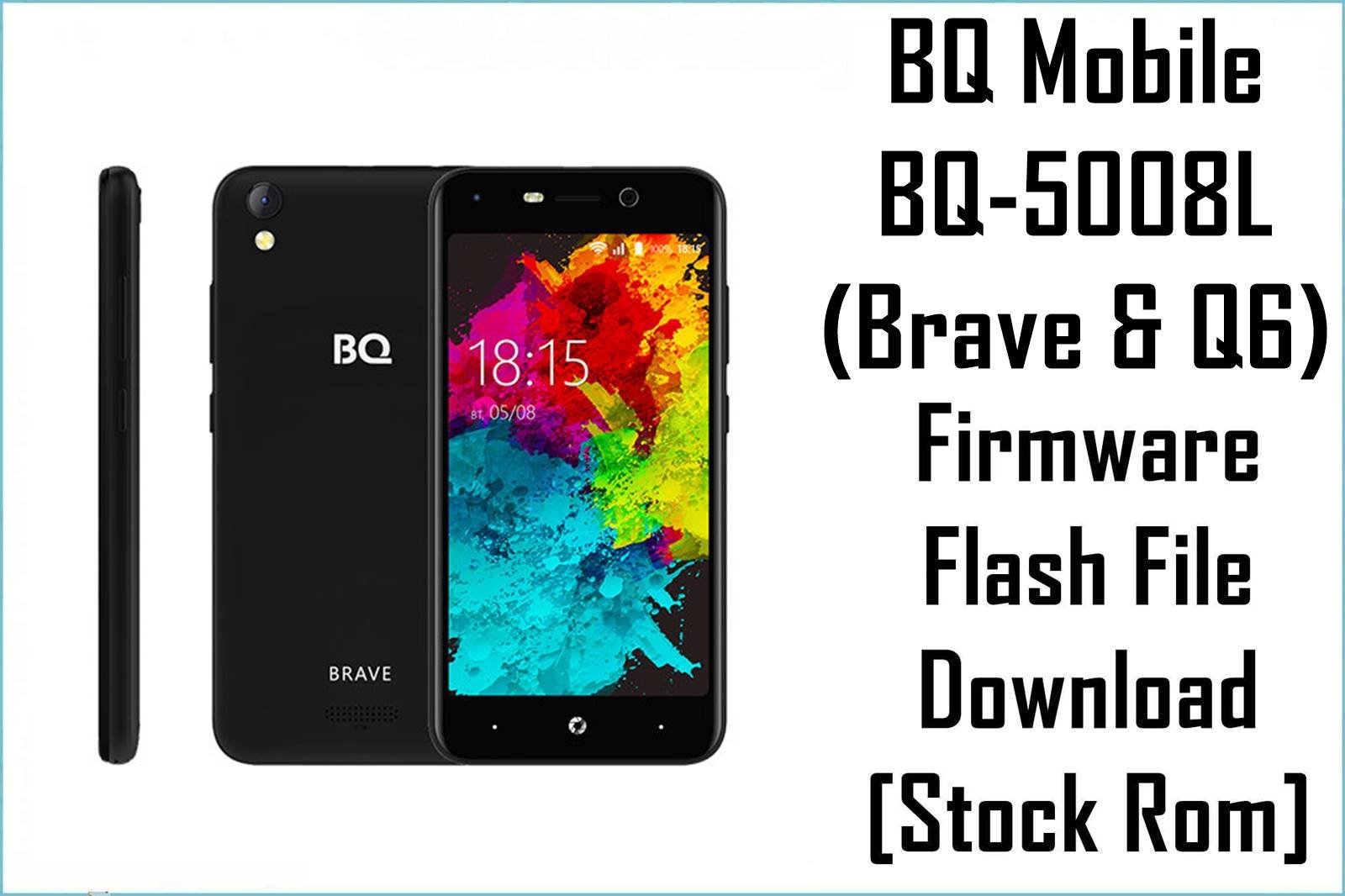
The BQ Mobile BQ-5008L is an entry-level smartphone that was released under two different marketing names: the Brave and the Q6. Despite sharing the same model number, these are two distinct devices with different chipsets and Android versions, making it crucial to identify the correct firmware for your specific phone. Common issues across both variants include software-related bugs, performance slowdowns, and system errors. Flashing the official stock firmware is the definitive way to resolve these problems and restore your device to its original, stable condition.
⚠️ CRUCIAL WARNING: Two Different Phones Share This Model Number!
Before downloading, you must identify your phone. The Brave uses an MT6737M chipset and runs Android 7.0. The Q6 uses an MT6580 chipset and runs Android 5.1. Flashing the wrong firmware will not work and may brick your device. Check your phone’s “About” section in settings if possible. This process will also erase all your personal data.
⚠️ Prerequisites: Before You Begin
Click Here for the Essential Pre-Flashing Checklist
- Backup Your Data: All your personal data and files will be permanently erased.
- Charge The Battery: To prevent shutdown during flashing, ensure the battery is charged to at least 50%.
- Windows PC & USB Cable: You will need a Windows computer and a micro USB data cable.
📱 Quick Device Specifications
Note the key differences in Chipset and Android Version between the two models.
| Specification | BQ-5008L Brave | BQ-5008L Q6 |
|---|---|---|
| Chipset | MediaTek MT6737M | MediaTek MT6580 |
| Operating System | Android 7.0 Nougat | Android 5.1 Lollipop |
| Display | 5.0″ IPS (854×480) | 5.0″ IPS (854×480) |
| RAM | 1GB | 1GB |
| Storage | 8GB | 8GB |
| Battery | 2000 mAh (Removable) | 2000 mAh (Removable) |
🛠 Required Tools & Downloads
⬇️ BQ Mobile BQ-5008L Brave & Q6 Stock ROM / Firmware
For BQ-5008L Brave (Android 7.0)
| Android Version | Build Number | Chipset | Download Link |
|---|---|---|---|
| 7.0 Nougat | V004 | MediaTek MT6737M | Download (Yandex Disk) |
For BQ-5008L Q6 (Android 5.1)
| Android Version | Build Date | Chipset | Download Link |
|---|---|---|---|
| 5.1 Lollipop | 2018-03-23 | MediaTek MT6580 | Download (MediaFire) |
Quick Steps to Flash BQ-5008L Firmware
- Download and install the MediaTek VCOM drivers. Extract the correct firmware for your device (e.g.,
MT6737M__...Brave.rar) and the SP Flash Tool. - Launch
flash_tool.exe. Click the “Scatter-loading” button and select theMTxxxx_Android_scatter.txtfile from your specific firmware folder. - Ensure the flashing mode in the dropdown menu is set to “Download Only.”
- Power off your phone and remove the battery. Click the green “Download” button in SP Flash Tool, then connect the phone to your PC via USB cable (without the battery).
- The flash will start automatically. Once you see the green checkmark pop-up, you can disconnect the phone, re-insert the battery, and power it on.
For a more detailed, step-by-step guide on this process, please refer to our main tutorial:
👉 Full Tutorial: How to Flash MediaTek Firmware with SP Flash Tool
❓ Frequently Asked Questions (FAQs)
- Q1. My BQ-5008L Brave is stuck after an update. Which file do I use?
- If you have the Brave model, you must use the Android 7.0 firmware file. A failed Over-The-Air (OTA) update is a common reason for a phone to get stuck in a bootloop, and manually flashing the full stock ROM is the correct way to fix it.
- Q2. My BQ-5008L Q6 has a virus. How do I remove it?
- If you have the Q6 model, you must use the Android 5.1 firmware. This is the most effective way to completely remove any deep-rooted malware or adware that a factory reset might not catch.
- Q3. I get a “PMT changed for the ROM” error in SP Flash Tool. What should I do?
- This error means the partition layout is mismatched. This is common if a previous update failed. To fix this, change the flashing mode in SP Flash Tool from “Download Only” to “Firmware Upgrade” and try the process again.
🔧 Device Troubleshooting
- The phone is not detected by SP Flash Tool: Both the Brave and Q6 have removable batteries, which simplifies this process. Ensure the VCOM drivers are installed, click “Download” in SP Flash Tool, remove the battery from the phone, and then connect the phone to the PC without the battery inside. This is the most reliable connection method for these chipsets.
- After flashing, the phone is stuck on the BQ logo: The first boot can be slow. If it’s still stuck after 10-15 minutes, boot into recovery mode (Power + Volume Up), and perform a “Wipe data/factory reset” to clear any old data conflicts.
- My BQ-5008L Brave has poor battery life: A clean firmware flash can help by removing rogue apps that drain power. After flashing, it’s also a good idea to calibrate the battery by draining it to 0% and then charging it to 100% without interruption.

💬 Comments