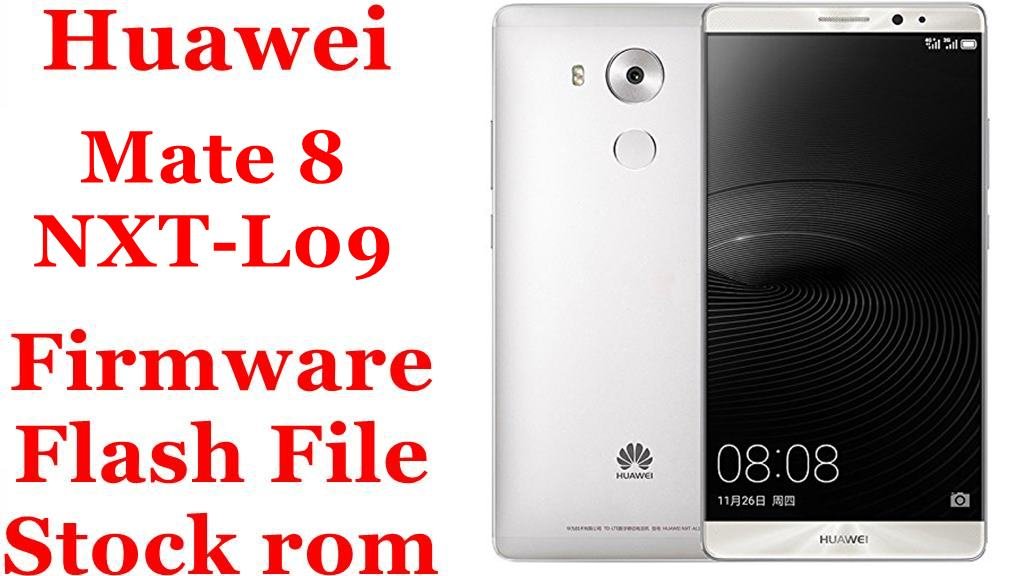
Download Huawei P9 Lite Mini / Selina Official Dload Firmware (EMUI 5.1.x)
The Huawei P9 Lite Mini (codename “Selina”) is an affordable 2017 smartphone based on the Snapdragon 425, 2 GB RAM and 16 GB storage, sold globally under models SLA‑L02, SLA‑L22, SLA‑L03, SLA‑L23 and related Nova Lite / Y6 Pro 2017 variants. As apps have grown heavier, many owners now face slowdowns, storage‑full errors, update failures and even soft bricks when EMUI updates stall, making clean Dload firmware flashes a practical way to restore performance, fix boot issues and return to stable stock software.
Complete Device & Firmware Overview
- Device Names
- Huawei P9 Lite Mini / Huawei Y6 Pro 2017 / Huawei Nova Lite (selected markets), platform codename “Selina”.
- Main Model Numbers
- SLA-L02, SLA-L22, SLA-L03, SLA-L23, SLA-AL00, SLA-TL10 and related Selina-AL00 / Selina-TL10 board variants.
- Chipset & Performance
- Qualcomm Snapdragon 425 (MSM8917), quad‑core 1.4 GHz Cortex‑A53 with Adreno 308 GPU, 2 GB LPDDR3 RAM and 16 GB eMMC 5.1 storage.
- Display & Battery
- 5.0‑inch HD (720×1280) IPS LCD at ~294 ppi with a 3020 mAh non‑removable Li‑Po battery, balancing compact size and all‑day light use.
- Original Software
- Android 7.0 Nougat with EMUI 5.1.x out of the box; no official major Android version upgrades were released for this series.
- Firmware Branches in This List
- EMUI 5.1 / 5.1.1 / 5.1.2 / 5.1.3 Android 7.0 stock and service Dload packages, plus several “board software” images for deep recovery.
- Regions / C‑Codes Covered
- C432 – open European/“hw eu” market; C09 – Vodafone custom Europe; C212 and C469 – Latin American / regional carriers; C636 – Hong Kong / Asia Pacific; C00 / C01 – mainland China channels.
- Typical User Complaints
- Lag and app reloads due to only 2 GB RAM, limited 16 GB storage quickly filling with apps and cache, poor multitasking, update failures, and occasional hanging at 99% during factory reset or system update.
- How These ROMs Help
- Flashing a full Dload ROM rewrites system and cust partitions, removes leftover junk from failed OTAs, fixes software bricks and often restores smoother performance compared to a heavily fragmented, aging installation.
- Firmware Type
- Official‑based stock or service ROMs in Dload format (UPDATE.APP or update_sd packages inside de>dload folders), some with “board software” tags intended for unbrick and deep repair.
- Flash Method
- Standard Huawei Dload update via microSD/OTG (three‑button combo or “Update from SD card”) on a powered‑off or recovery‑ready device.
- Bootloader / FRP
- Dload usually works with a locked bootloader if region and model match; it still wipes user data and may fail if anti‑rollback or cust mismatch is detected.
- File Sizes
- Most full firmwares are ~2.3–3.4 GB; “board software” images are smaller (~1–2 GB) because they focus on core partitions for deep repair.[attached_file:1]
Flashing a wrong Selina variant (for example, SLA‑L22 firmware on SLA‑L03, or C00 China ROM on a C432 EU device), corrupted archives or half‑finished Dload installs can cause bootloops, loss of IMEI or even an unrecoverable hard brick, so matching your exact model and region is critical.
CRUCIAL WARNING: These ROMs are strictly for Huawei P9 Lite Mini / Y6 Pro 2017 / Nova Lite devices built on the “Selina” platform (models like SLA‑L02, SLA‑L22, SLA‑L03, SLA‑L23, SLA‑AL00, SLA‑TL10 and Selina‑AL00/TL10); do not flash them to P9, P9 Lite, P9 Lite 2016 or any unrelated Huawei/Honor device.
Each build is region‑coded (C432, C09, C212, C469, C636, C00, C01), and cross‑region flashing can break LTE bands, VoLTE and future OTA updates, especially when carrier‑branded cust partitions are involved, so ordinary users should stay on the same C‑code that’s printed in Settings > About phone.
Most Dload and “board software” packages here fully wipe user data; mixing single‑SIM and dual‑SIM packages, interrupting the flash or repeatedly retrying with mismatched firmware can lead to loss of IMEI/network or a non‑booting phone that then needs professional tools to recover.
Download Firmware for Huawei P9 Lite Mini / Selina
The table below lists all Selina Dload and service firmwares, ordered by stability and build recency within EMUI 5.1.x. For everyday users, the best choice is usually the newest build that matches both your model (for example SLA‑L02 vs SLA‑L22) and your original region code (C432, C09, C212, C469, C636, C00 or C01), while older or “board software” images should be kept for last‑resort unbrick or downgrade work.
| Filename | Model / Variant | Region (C‑Code) | EMUI / Android | Build | Flashing Method | File Size | Notes | Download |
|---|---|---|---|---|---|---|---|---|
| Huawei P9 Lite Mini SLA-L02 hw eu HLRCF Selina-L02C432B170 Firmware 7.0.0 r1 EMUI5.1.3 05014SUT.zip | SLA-L02 (single‑SIM, Europe) | C432 – open EU / “hw eu”[attached_file:1] | EMUI 5.1.3 / Android 7.0 | B170 (newer than B169) | Dload (SD/OTG) | 3.4 GB | Best all‑round choice to refresh or repair SLA‑L02 European units; use this first unless you specifically need B169. | Download (AndroidFileHost) |
| Huawei_P9_Lite_Mini_SLA-L02_C432B169_Firmware_7.0.0_R1_EMUI5.1.3_05014RAM_Dload.zip | SLA-L02 (single‑SIM, Europe) | C432 – open EU | EMUI 5.1.3 / Android 7.0 | B169 | Dload (SD/OTG) | 3.37 GB | Older sibling of B170; keep as a fallback if B170 refuses to flash or a tool requires this exact build. | Download (Google Drive) |
| Huawei_P9_Lite_Mini_Selina-L22_C432B169_Firmware_7.0.0_R1_EMUI5.1.3_05014RAM_Dload.zip Huawei_P9_Lite_Mini_SLA-L22_C432B169_Firmware_7.0.0_R1_EMUI5.1.3_05014RAM_Dload.zip |
SLA-L22 (dual‑SIM, Europe) | C432 – open EU | EMUI 5.1.3 / Android 7.0 | B169 | Dload (SD/OTG) | 3.37–3.38 GB | Latest known open‑market C432 build for dual‑SIM P9 Lite Mini; both filenames host the same branch, acting as alternative mirrors. | Download Link 1 / Download Link 2 |
| Huawei P9 Lite Mini SLA-L22 vodafone default HLRCF Selina-L22C09B144 Firmware 7.0.0 r1 EMUI5.1.3 05014SHY.zip | SLA-L22 (dual‑SIM, Vodafone) | C09 – Vodafone EU custom | EMUI 5.1.3 / Android 7.0 | B144 | Dload (SD/OTG) | 2.3 GB | Carrier‑branded firmware with Vodafone apps and settings; flash only on original C09 devices to keep network and OTA behavior intact. | Download (AndroidFileHost) |
| Selina-L03C212B054CUSTC212D001_Firmware_7.0.0_r1_EMUI5.1.2_05014SLH.zip | SLA-L03 (single/dual, regional) | C212 – regional/Latin America market | EMUI 5.1.2 / Android 7.0 | B054 | Dload (SD/OTG) | 2.4 GB | Recommended for C212 devices in markets like South America; slightly older EMUI build but tuned to local networks. | Download (Google Drive) |
| Selina-L23C469B141CUSTC469D001 Firmware 7.0.0 r1 EMUI5.1.1 05014SYK.zip | SLA-L23 (dual‑SIM LATAM) | C469 – Latin America / specific carriers | EMUI 5.1.1 / Android 7.0 | B141 | Dload (SD/OTG) | 3.09 GB | Best‑fit firmware for SLA‑L23 sold across Latin American markets; ideal for fixing network or software issues while staying on the original region. | Download (Google Drive) |
| Selina-TL10HKC636B139_Firmware_7.0.0_r1_EMUI5.1_05014RSV.zip | SLA-TL10HK (dual‑SIM) | C636 – Hong Kong / Asia Pacific | EMUI 5.1 / Android 7.0 | B139 | Dload (SD/OTG) | 2.44 GB | For Hong Kong / C636 Selina TL10 models; use this for clean repair instead of forcing European C432 firmware. | Download (Google Drive) |
| SLA-AL00_TL10_C00B203.rar | SLA-AL00 / SLA-TL10 (China) | C00 – China open market | EMUI 5.1 / Android 7.0 | B203 | Dload (SD/OTG) | 2.23 GB | Unified Chinese firmware for AL00 and TL10; use only on China Selina devices to keep local features and safety certifications. | Download (Google Drive) |
| Selina-TL10AC01B203_Firmware_Android 7.0_EMUI 5.1_05014LER.zip (Dual SIM 2GB + 16GB) | Selina-TL10A (dual‑SIM 2/16) | C01 – China Mobile / sub‑channel | EMUI 5.1 / Android 7.0 | B203 | Dload (SD/OTG) | 2.61 GB | Targeted at 2 GB + 16 GB TL10A units; stick to this if your software string already shows C01. | Download (Google Drive) |
| 高维禁用_Selina-TL10BC01B204_Firmware_7.0.0_r1_EMUI5.1.3_05014LRD.zip (Dual SIM 3GB + 32GB) | Selina-TL10B (dual‑SIM 3/32) | C01 – China Mobile / sub‑channel | EMUI 5.1.3 / Android 7.0 | B204 | Dload (SD/OTG) | 2.60 GB | Advanced B204 firmware tuned for 3 GB + 32 GB TL10B hardware; recommended for technicians handling Chinese high‑RAM variants. | Download (Google Drive) |
| 高维禁用_Selina-AL00BC00B204_Firmware_7.0.0_r1_EMUI5.1.3_05014EHA.zip | Selina-AL00B (China) | C00 – China open market | EMUI 5.1.3 / Android 7.0 | B204 | Dload (SD/OTG) | 2.59 GB | Chinese EMUI 5.1.3 package for AL00B; use on matching Chinese devices where the software string already references C00B204. | Download (Google Drive) |
| 高维禁用_Selina-AL00AC00B204_Firmware_7.0.0_r1_EMUI5.1.3_05014LRC.zip | Selina-AL00A (China) | C00 – China open market | EMUI 5.1.3 / Android 7.0 | B204 | Dload (SD/OTG) | 2.59 GB | Another Chinese B204 branch for AL00A; typically used in repair shops when stock updates fail. | Download (Google Drive) |
| Huawei_Nova_Lite_Selina-AL00_S001042_Board_Software_Genera_Android_7.0_EMUI_5.1_Dload.zip | Selina-AL00 (Nova Lite board) | China / service | EMUI 5.1 / Android 7.0 | S001042 board software | Dload (SD/OTG) | 993 MB | Lightweight board software image mainly for deep unbrick; recommended only for experienced technicians familiar with Selina platform recovery. | Download (Google Drive) |
| SLA-BD SELINAAL00S001046_Board Software_China_Nonspecific_Android 7.0_EMUI 5.1_05022GBS.rar | SELINA AL00 board (China) | China non‑specific | EMUI 5.1 / Android 7.0 | S001046 board software | Dload (service) | 1.93 GB | Generic Selina AL00 board image used in labs and service centers to revive severely bricked devices before loading full retail firmware. | Download (Google Drive) |
Which file is right for you? If your About phone string shows something like de>SLA-L22C432B169, choose the matching C432 SLA‑L22 B169 firmware; if it shows C469 or C636, pick the corresponding Latin America or Hong Kong builds and avoid cross‑flashing regions unless you are troubleshooting with professional‑grade tools.
Preparation Before Flashing
Click here for the Huawei P9 Lite Mini / Selina pre‑flash checklist
- Confirm exact Selina model and C‑code: In Settings > About phone or fastboot/recovery, verify that your device is SLA‑L02, SLA‑L22, SLA‑L03, SLA‑L23, SLA‑AL00, SLA‑TL10 (or related Selina‑AL00/TL10) and note the C‑region (C432, C09, C212, C469, C636, C00 or C01) before downloading firmware.
- Back up all personal data: Dload and especially “board software” flashes will factory‑reset the device; use HiSuite, Google backup or manual copies to SD/PC to protect photos, chats and app data.
- Charge to at least 50–60%: A mid‑flash shutdown from low battery is one of the fastest ways to corrupt partitions and cause update failures stuck at 99%.
- Use a good SD card or OTG drive: Format your card/USB as exFAT and avoid very old or fake media, because read errors can cause the phone to abort the update or mis‑flash files.
- Extract and place the de>dload folder correctly: After downloading, fully extract the archive and ensure the de>dload folder (with de>UPDATE.APP or equivalent) sits in the root directory of the SD card or OTG drive.
Quick Firmware Flash Instructions
This high‑level guide summarizes how to flash any of the listed Huawei P9 Lite Mini / Selina Dload packages (for example de>Huawei_P9_Lite_Mini_SLA-L22_C432B169_… or de>Selina-L23C469B141_…) using the standard SD‑card Dload method.
- Download and verify: Grab the firmware that matches your model and C‑region, then verify the archive opens without errors and that its size matches what the host page reports.
- Prepare de>dload on SD/OTG: Extract the zip/rar until you see a de>dload folder, then copy that entire folder to the root of a formatted microSD card or USB OTG drive.
- Enter Dload update mode: Power off the phone, insert the SD card (or connect OTG), then hold Volume Up + Volume Down + Power together until the Huawei update screen appears and the device starts reading the package.
- Wait for installation to finish: Let the progress bar reach 100% and avoid pressing keys or disconnecting storage; the phone should reboot automatically once system and cust partitions are flashed.
- Complete setup and test: After the first boot (which may take several minutes), configure EMUI, restore your backups and test calls, data, Wi‑Fi, camera and fingerprint sensor to confirm everything works correctly.
For a detailed, screenshot‑rich Huawei flashing tutorial (including extra methods for stuck updates and rollback tips), follow the main Huawei firmware flashing guide and simply substitute your Selina de>dload folder whenever the guide asks you to select firmware.
Frequently Asked Questions (FAQs)
- Q1. Which ROM should I choose for my P9 Lite Mini?
- Pick the newest firmware that exactly matches both your model (SLA‑L02 vs SLA‑L22 vs SLA‑L03 vs SLA‑L23 vs SLA‑AL00/TL10) and your C‑region (C432, C09, C212, C469, C636, C00, C01) as shown in the software version string; for example, de>SLA-L22C432B169 should use the SLA‑L22 C432 B169 package. Avoid mixing C‑codes unless you are following a trusted cross‑flash guide and understand the risks to LTE bands and OTAs.
- Q2. Can I use these firmwares on Y6 Pro 2017 or Nova Lite Selina devices?
- Many Y6 Pro 2017 and some Nova Lite variants share the Selina hardware platform, and service centers do cross‑use board software and Selina packages for repair in some cases. However, because branding, cust partitions and network configs can differ, non‑experts should only flash packages whose model and region match their current software string.
- Q3. Will a clean Dload flash make my P9 Lite Mini faster and fix lag?
- A fresh stock flash often removes leftover cache and app data from years of use and failed OTAs, which can noticeably reduce random slowdowns and UI stutter on low‑end Snapdragon 425 devices. That said, the phone still has only 2 GB RAM and 16 GB storage, so you should keep apps light and storage clear to maintain any performance gains.
- Q4. My factory reset or update gets stuck at 99%—will these ROMs help?
- Huawei’s own EMUI support suggests using SD‑card updates or full firmware reflashes when system updates or resets stall, after backing up your data. Flashing the correct Dload package from this list can often recover a device stuck at 99% by reinstalling the entire OS instead of relying on a partial reset.
- Q5. Do these Dload and board software packages erase my data?
- Yes, service and board software packages are designed to perform deep system repairs and will typically wipe apps, settings and internal storage, similar to or more drastic than a factory reset. Always treat any Dload operation as a full data wipe and back up everything important before you start.
- Q6. Where can I find more help if the phone still has issues after flashing?
- If problems persist—such as missing IMEI, no network or repeated bootloops—community forums and repair guides for Selina / SLA‑L22 often recommend checking hardware, trying a different but matching firmware build, or using professional tools rather than repeatedly re‑flashing. At that point, visiting a trusted repair shop with Huawei experience is usually safer than experimenting further at home.