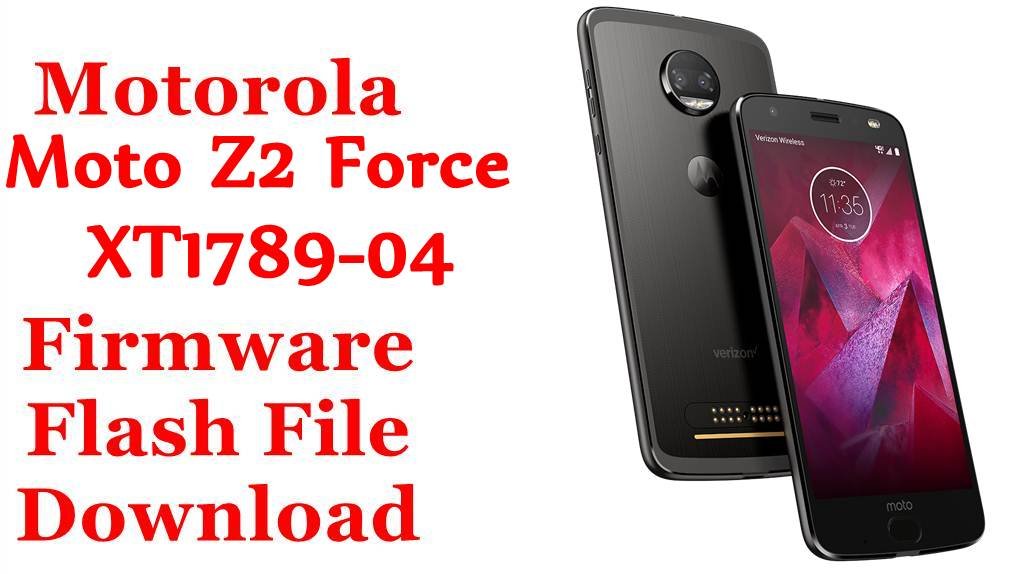
The Motorola Moto Z2 Force (XT1789-04) was a flagship smartphone from 2017, celebrated for its innovative “ShatterShield” display, powerful Snapdragon 835 processor, and compatibility with Moto Mods. The device launched with Android 7.1.1 Nougat and later received an official update to Android 8.0 Oreo. However, the Oreo update was a source of frustration for many users, who reported significant battery drain, performance issues, and general instability. For users looking to downgrade back to the more stable Nougat, restore a bricked device, or perform a clean installation to fix software bugs, flashing the official stock firmware is the definitive solution.
⚠️ CRUCIAL WARNING: Advanced Flashing & Downgrade Risk
This process uses the Fastboot method, which requires an unlocked bootloader and will completely erase all your personal data. While downgrading is a common goal for this device, it is risky. Flashing a firmware with an older bootloader version than what is on your device will cause the flash to fail and can potentially brick it. Proceed with extreme caution.
⚠️ Prerequisites: Before You Begin
Click Here for the Essential Pre-Flashing Checklist
- Unlock Bootloader: Your Moto Z2 Force’s bootloader must be officially unlocked via Motorola’s website. This process also wipes your data.
- Backup Your Data: This procedure will wipe everything. Back up your data to a computer or cloud storage.
- Charge The Battery: Ensure your phone has at least a 60% charge to prevent it from shutting down.
- Windows PC & USB Cable: You will need a Windows computer and the original Motorola USB-C cable.
📱 Quick Device Specifications
- Device
- Motorola Moto Z2 Force
- Model
- XT1789-04
- Chipset
- Qualcomm Snapdragon 835
- Display
- 5.5″ QHD P-OLED ShatterShield
- Operating System
- Android 7.1.1 Nougat / 8.0 Oreo
- RAM
- 4GB / 6GB
- Storage
- 64GB / 128GB
- Battery
- 2730 mAh
🛠 Required Tools & Downloads
| File / Tool | Download Link |
|---|---|
| ADB and Fastboot Platform Tools | Download from Google |
| Motorola USB Drivers | Download Drivers |
⬇️ Motorola Moto Z2 Force (XT1789-04) Stock ROM / Firmware
AT&T (ATT)
T-Mobile (TMO)
Quick Steps to Flash Moto Z2 Force Firmware
- Install the Motorola drivers. Extract the ADB/Fastboot tools and the firmware file into the same folder.
- Reboot your phone into Fastboot Mode: power it off, then press and hold Power + Volume Down until the bootloader screen appears. Connect it to your PC.
- Open a command prompt in the firmware folder (Shift + Right Click > “Open command window here”).
- If the firmware contains a `flash_all.bat` script, you can run it. Otherwise, you must manually flash each command listed in the `flashfile.xml` file. For example:
fastboot flash partition gpt.bin
fastboot flash bootloader bootloader.img
fastboot flash boot boot.img
…and so on for every partition. - After flashing all commands, type `fastboot reboot` to restart the phone.
For a more detailed, step-by-step guide on this process, please refer to our main tutorial:
👉 Full Tutorial: How to Flash Firmware Using Fastboot
❓ Frequently Asked Questions (FAQs)
- Q1. Why would I downgrade from Oreo to Nougat on my Z2 Force?
- The primary reason is battery life. The Android 8.0 Oreo update was widely reported to cause significant battery drain on this model. Downgrading to the more stable Android 7.1.1 build is a common and effective way to restore the phone’s battery performance, but be mindful of the bootloader version restrictions.
- Q2. Can I flash the T-Mobile firmware on my AT&T phone?
- It is strongly not recommended. While the model number is the same, flashing firmware for a different carrier can lead to network connectivity issues, loss of features like VoLTE or Wi-Fi calling, or a failed flash.
- Q3. My ShatterShield screen is peeling or scratched. Will software fix this?
- No. The peeling and scratching of the top layer of the ShatterShield display is a physical hardware issue. No software flash or update can repair physical damage to the screen.
🔧 Device Troubleshooting
- My phone is not detected in Fastboot mode (“waiting for device”): This is a driver issue. Ensure you have installed the correct Motorola USB drivers. You can check the connection by typing `fastboot devices` in the command prompt. If a serial number appears, you are connected.
- After flashing, the phone is stuck on the Motorola logo: The first boot can take a long time. If it’s still stuck, you must perform a factory reset. Boot into recovery mode from the fastboot menu, then navigate to “Wipe data/factory reset” and confirm.

💬 Comments