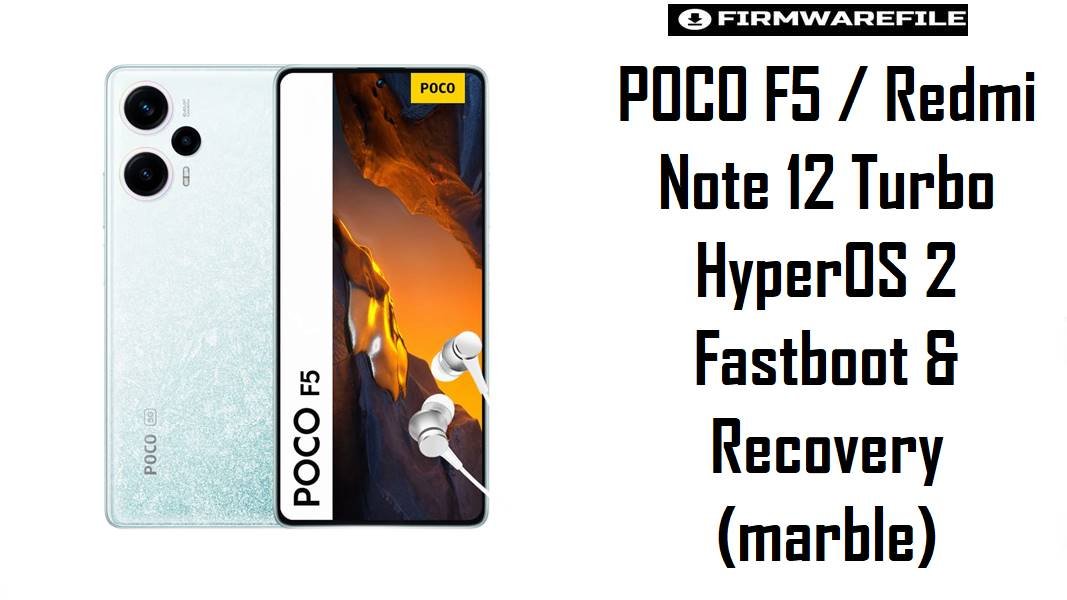
The POCO F5 and Redmi Note 12 Turbo (codename marble) sit in the upper mid‑range segment with a Snapdragon 7+ Gen 2, often used for sustained gaming, camera tweaks, and custom ROM experimentation. On this kind of performance‑oriented phone, picking the right HyperOS 2 fastboot ROM and recovery image is critical to avoid modem issues, unstable overclocks, or losing data after a failed tweak.
Download Firmware for POCO F5 / Redmi Note 12 Turbo (marble)
These are Android 15 HyperOS 2 fastboot ROMs for different regions, plus one Xiaomi.eu build and custom recoveries for advanced users. Use the newest build for your region as a baseline unless you are intentionally downgrading or diagnosing a regression introduced by a recent update.
Complete Device & Firmware Overview
- Device Name
- POCO F5 (global) / Redmi Note 12 Turbo (China), both sharing codename
marble. - Codename Variants
marblefor global POCO F5 / China Turbo,marbleinsometimes used for India; both are treated as part of the same platform family.- Model Numbers
- Examples include 23049PCD8G (POCO F5 Global), 23049PCD8I (POCO F5 India), 23049RAD8C (Redmi Note 12 Turbo China).
- Chipset
- Qualcomm Snapdragon 7+ Gen 2 (SM7475‑AB), octa‑core design with high single‑core and sustained gaming performance.
- Display
- 6.67″ 120 Hz AMOLED with 1080 × 2400 resolution, making frame consistency and GPU tuning in firmware important for gamers.
- RAM / Storage
- 8/12/16 GB LPDDR5 RAM with 256/512 GB or 1 TB UFS 3.1 storage, enough headroom that firmware updates rarely cause “out of memory” situations by themselves.
- Battery
- 5000 mAh battery with 67 W fast charging; HyperOS changes mainly affect standby drain, thermal behavior, and charging control, not capacity.
- Original Software
- Shipped with Android 13 / MIUI 14, later upgraded to Android 14 and 15 under HyperOS 1 and HyperOS 2.
- Firmware Type (listed here)
- Official HyperOS 2 Android 15 fastboot ROMs in
.tgzformat and one Xiaomi.eu custom ROM.zip, all for codenamemarble. - HyperOS 2 Global Example
- OS2.0.211.0 VMRMIXM (Global) builds on earlier OS2.0.205.0 and similar releases, bringing new UI elements and low‑level optimizations.
- Security Patch Level
- OS2.0.2xx.x firmware for marble typically ships with late‑2025 Android security patches, important for banking and work profiles.
- Bootloader Status
- Stock OTA updates work on locked bootloaders; fastboot flashing, Xiaomi.eu, and custom recoveries require an unlocked bootloader.
- Bootloader Rules
- Relocking (“clean all and lock”) is safe only when running untouched official firmware intended for your specific region; doing so on Xiaomi.eu or cross‑region ROMs can brick the device.
- Fastboot ROM Size
- Fastboot packages range between ~6.3 and 7.9 GB due to bundled HyperOS assets, multiple language packs, and system apps.
- Required Tools (fastboot)
- Windows PC, updated Qualcomm drivers, Xiaomi Mi Flash Tool (or QFIL/fastboot scripts for advanced users), and a high‑quality USB‑C cable.
- Required Tools (custom ROMs)
- Unlocked bootloader, TWRP or OrangeFox recovery, ADB/fastboot, and familiarity with Magisk, backups, and sometimes firmware‑per‑ROM requirements.
- Typical Use Cases
- Recovering from bootloops after mods, moving from custom ROMs back to stock, or adopting HyperOS 2 for better UI and performance on a gaming‑focused device.
- Who Should Avoid Manual Flashing
- Users satisfied with OTA behavior and not interested in root or custom ROMs; for them, risk of data loss and downtime outweighs potential gains.
CRUCIAL WARNING: These HyperOS 2 fastboot ROMs are strictly for POCO F5 / Redmi Note 12 Turbo devices with codename marble (and regional variants like marblein). They must not be flashed to other POCO, Redmi, or Xiaomi models, even if they share similar specs or names.
All official marble_*_images_*.tgz fastboot packages typically wipe user data when flashed with Xiaomi’s tools, and selecting “clean all and lock” with a mismatched or modified ROM (for example, Xiaomi.eu) can relock the bootloader on unsupported firmware, causing bootloops, encryption errors, or mobile network loss.
Preparation Before Flashing
Show essential preparation checklist for POCO F5 / Redmi Note 12 Turbo (marble)
- Verify in Settings > About phone that the device is POCO F5 or Redmi Note 12 Turbo, then boot into fastboot mode and run
fastboot getvar productto confirm the codename ismarble(or a region variant like marblein). - Check your current regional build (VMRMIXM Global, VMREUXM EEA, VMRINXM India, VMRCNXM China, etc.) and choose a matching or intentionally targeted fastboot ROM; avoid random region hops just to change preinstalled apps.
- Back up photos, game data, 2FA, and app logins; as a gaming‑centric phone, marble often holds large game assets and saves that will be erased by a clean fastboot flash.
- Install Qualcomm drivers and Mi Flash Tool on a stable Windows PC, connect the phone in fastboot, and confirm it appears correctly before starting any firmware operation.
- Charge the battery to at least 60–70% and use a reliable USB‑C cable; mid‑flash disconnects on Snapdragon‑based phones can leave the device in a difficult‑to‑recover state requiring deep troubleshooting.
Quick Firmware Flash Instructions
These high‑level steps cover official HyperOS 2 fastboot ROMs and Xiaomi.eu/custom recovery use on marble; always refer to the linked guides for full detail.
Official HyperOS 2 fastboot ROMs (.tgz – Global/EEA/IN/CN and others)
- Download the appropriate fastboot ROM for your unit (for example, Global OS2.0.211.0 VMRMIXM for most POCO F5, or VMRCNXM for Chinese Note 12 Turbo) and extract the
.tgzto a simple folder path on your PC. - With the bootloader already unlocked, power the phone off, enter fastboot mode (Volume Down + Power), and connect the marble device to your computer via USB‑C.
- Open Xiaomi Mi Flash Tool, load the extracted
marble_*_images_*.tgzdirectory, press “refresh” to ensure the device is detected, and choose a flash mode that does not lock the bootloader if you are changing regions or plan to return to custom ROMs. - Start flashing and wait until Mi Flash finishes; the phone should reboot automatically into HyperOS 2. Do not interrupt the process or disconnect the cable until completion.
- After boot, complete setup, check IMEI and 5G/LTE connectivity, then verify for additional OTA updates within the same region branch to stay current.
For detailed Xiaomi/POCO HyperOS fastboot instructions with screenshots, follow: How to flash Xiaomi firmware with Mi Flash Tool.
Xiaomi.eu ROM & custom recoveries (TWRP / OrangeFox)
- Ensure the bootloader is unlocked, then copy
xiaomi.eu_MARBLE_OS2.0.213.0.VMRCNXM_15.zipto internal storage and keep a matching VMRCNXM or VMRMIXM fastboot ROM on your PC as a safety net. - Boot into fastboot and temporarily start TWRP using
fastboot boot twrp-3.7.1_12-v9.0_A15-marble-skkk.imgso you can test decryption, backups, and touch response before installing it or OrangeFox permanently. - From TWRP or OrangeFox, perform a recommended wipe (usually system, vendor, and cache; data if migrating from a different ROM family), then flash the Xiaomi.eu ROM zip and wait for completion.
- Reboot into system and allow several minutes for the first HyperOS 2 boot; verify network, camera, and gaming performance before adding root modules or heavy tweaks.
- Optionally, flash TWRP/OrangeFox to the recovery partition only after confirming compatibility; otherwise continue booting recovery images via fastboot to reduce the risk from broken recovery updates.
For fastboot‑driven ROM flashing fundamentals that complement custom recovery use, see: How to flash Android firmware using fastboot.
Frequently Asked Questions (FAQs)
1. How do I confirm my POCO F5 / Note 12 Turbo is really the marble variant?
Boot into fastboot mode and run fastboot getvar product; HyperOS firmware listed here is only for devices reporting marble (or region variants like marblein). You can also cross‑check model numbers such as 23049PCD8G/8I or 23049RAD8C against official references before flashing.
2. Will moving from Global OS2.0.205.0 to OS2.0.211.0 noticeably improve gaming performance?
Newer HyperOS 2 builds often refine thermal limits, scheduler behavior, and GPU drivers, which can slightly reduce throttling and frame drops in demanding games. However, core gaming performance still depends mainly on Snapdragon 7+ Gen 2 and cooling; consistent performance requires realistic graphics settings and sustained cooling, not repeated flashing alone.
3. Is it safe to flash Chinese VMRCNXM on my Global POCO F5 to get extra features?
Technically, Global devices can boot CN firmware, but you lose out‑of‑box Google services and may face app compatibility, language, and notification quirks along with a different bloat profile. For most non‑Chinese users, a Global or Xiaomi.eu build is more practical, as it retains Western services while still benefiting from HyperOS 2 features.
4. Does Xiaomi.eu based on VMRCNXM affect OTA and SafetyNet on marble?
Xiaomi.eu disables official OTA and instead uses its own zip updates, so stock system updates via Settings will stop working. Passing SafetyNet or Play Integrity depends on Magisk setup and other tweaks rather than the Xiaomi.eu base itself, so rooted users must manage that separately.
5. Should I relock the bootloader after flashing HyperOS 2 on my POCO F5?
Relocking can improve physical security, but only when running untouched official firmware for your exact region with no root or custom recovery installed. Locking the bootloader while on Xiaomi.eu, modified kernels, or a cross‑region ROM risks hard‑to‑recover bootloops and is not recommended for modded setups.
6. How do TWRP and OrangeFox differ for marble owners who flash ROMs often?
TWRP is the most widely referenced recovery with broad ROM support, while OrangeFox adds quality‑of‑life features like update scripting and UI tweaks. For a user who flashes frequently, choosing the recovery with better current support for marble’s Android 15 encryption and backup format is more important than the brand name.
7. What is the safest path to recover from a failed Magisk module or custom kernel on marble?
If recovery still works, boot TWRP/OrangeFox, remove or disable the problematic module, and re‑flash the current ROM’s boot/kernel image as needed. If the device only boots to fastboot, flashing the latest matching HyperOS 2 fastboot ROM for your region (for example, OS2.0.211.0 VMRMIXM Global) is the most reliable way to restore a fully working stock system.

💬 Comments