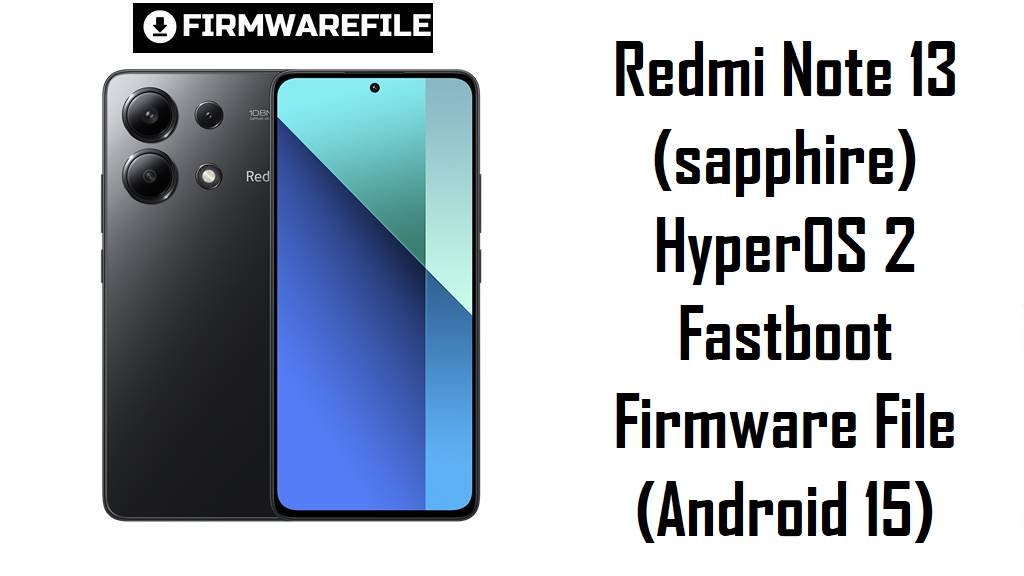
Redmi Note 13 (sapphire) HyperOS 2 Fastboot Firmware File (Android 15)
Redmi Note 13 sits in Xiaomi’s value segment: strong display/camera for the price, but updates can sometimes introduce UI delays, heat/battery complaints, or random sluggishness over time.
These downloads provide Xiaomi fastboot packages you can use as a stock ROM option to stabilize performance, recover from boot issues, and return to a clean baseline when OTA updates misbehave.
Download Firmware for Redmi Note 13 (sapphire)
| Filename | Region / Variant | Build Number | Build Date | Android | Flashing Method | Notes (Who should use it?) | File Size | Download |
|---|---|---|---|---|---|---|---|---|
sapphire_global_images_OS2.0.207.0.VNGMIXM_20251103.0000.00_15.0_global_dbcec235d3.tgz |
Global (MIXM) Fastboot | OS2.0.207.0.VNGMIXM | 2025-11-03 | 15.0 | Xiaomi Flash Tool (Fastboot) | Best pick for most “Global” Redmi Note 13 users already on MIXM builds (clean reinstall, unbrick-from-bootloop scenarios where fastboot still works, or heavy lag after an update). If you’re seeing slow system animations/control center delay on HyperOS 2, moving to a newer same-region build is the lowest-risk path. | 7.08 GB | Download From Xiaomi BigOTA |
sapphire_dc_global_images_OS2.0.3.0.VNGMIDC_20250326.0000.00_15.0_global_dc_c9491e8165.tgz |
Global_DC (MIDC) Older build | OS2.0.3.0.VNGMIDC | 2025-03-26 | 15.0 | Xiaomi Flash Tool (Fastboot) | This is an older HyperOS 2 fastboot package and it’s for the “GLOBAL_DC / sapphire_dc” track, not standard MIXM. Use it only if your phone originally shipped/updates on MIDC (Global_DC), or if a technician specifically needs this branch for diagnosis or downgrade testing. Avoid cross-flashing MIDC ↔ MIXM unless you fully understand Xiaomi region/branch differences. | 4.88 GB | Download From Xiaomi BigOTA |
Variant-matching tip: In Fastboot mode run fastboot getvar product to confirm the codename, and compare your current build suffix (like MIXM vs MIDC) in Settings → About phone before choosing a file. MiFirm also highlights checking product code in fastboot for correct matching.
Complete Device & Firmware Overview
- Phone model
- Redmi Note 13 (codename:
sapphire) - Known model numbers (Global)
23129RAA4G,23129RA5FL- Chipset
- Qualcomm Snapdragon 685 (6nm)
- Firmware package type
- Fastboot
.tgzimages (Xiaomi fastboot package) - Android version
- Android 15 (as indicated in the provided package names; MIDC Android 15 is also listed by MiFirm)
- Builds covered on this page
- OS2.0.207.0.VNGMIXM (Global) and OS2.0.3.0.VNGMIDC (Global_DC)
- Release / build date
- Encoded in the filename (YYYYMMDD), shown in the download table above.
- Security patch level
- Not reliably stated in the filenames here; confirm after flashing in Settings → Android security patch level.
- Flash method
- Xiaomi Flash Tool via Fastboot mode (Windows PC)
- Bootloader rules
- Fastboot flashing commonly requires an unlocked bootloader on Xiaomi devices; avoid downgrades if anti-rollback is enforced on your device/build.
- File sizes
- 7.08 GB (MIXM) and 4.88 GB (MIDC) as provided.
- Required tools
- Xiaomi Flash Tool + proper USB drivers, plus a stable USB cable (preferably direct PC port)
- Best use cases
- Fix bootloop (fastboot still accessible), remove persistent lag after updates, and “start fresh” when system/UI glitches persist; many users specifically complain about slow control center/notification interactions on some HyperOS 2 builds.
CRUCIAL WARNING: Flash only ROMs that match your Redmi Note 13 codename (sapphire) and branch (MIXM vs MIDC); wrong region/variant or unsafe downgrades (anti‑rollback) can cause boot failure or a hard brick.
Preparation Before Flashing
Click here for the Redmi Note 13 (sapphire) pre-flash checklist
- Confirm exact variant: Check “About phone” build suffix (MIXM or MIDC) and verify
fastboot getvar productbefore downloading. - Backup your data: Fastboot flashing commonly wipes user data, so back up photos, chats, and authenticator codes first.
- Charge the battery: Aim for at least 50–60% to prevent shutdown mid-flash.
- Use reliable PC setup: Prefer a direct motherboard USB port and a good cable to avoid random disconnects during flashing.
- Avoid risky downgrades: If you are moving to an older build, check rollback/bootloader constraints first to reduce brick risk.
Quick Firmware Flash Instructions
This is a simplified overview for flashing the listed Xiaomi fastboot packages (for example, sapphire_global_images_OS2.0.207.0.VNGMIXM_...tgz) using Xiaomi Flash Tool on Windows.
- Prep PC: Install Xiaomi USB drivers and Xiaomi Flash Tool, then extract the flash file (
.tgz) to a short folder path (e.g.,C:\sapphire\). - Enter Fastboot: Power off → hold Volume Down + Power → connect USB.
- Load ROM: In Xiaomi Flash Tool, select the extracted ROM folder (not the
.tgzitself). - Choose mode: Use “clean all” for a fresh install (recommended for persistent lag/bugs); avoid locking bootloader unless you are 100% sure the ROM matches your original region/branch.
- Flash & reboot: Start flashing, wait for success, then allow the first boot to complete (it can take several minutes).
For a detailed step-by-step walkthrough, use the official guide here.
Frequently Asked Questions (FAQs)
- Q1. Which build should I flash on Redmi Note 13 (sapphire)?
- Choose the build that matches your current branch suffix: Global users are typically on MIXM, while some units follow Global_DC (MIDC). Mixing branches can cause OTA issues or unexpected bugs, so match what your phone already uses.
- Q2. Can these files fix HyperOS 2 slow control center/notification shade behavior?
- Some Redmi Note 13 4G users report slow control center/notification shade animations or delay-like interactions on HyperOS 2 builds, so updating to a newer same-branch fastboot build (or doing a clean flash) is a practical troubleshooting step.
- Q3. Is OS2.0.3.0.VNGMIDC older than OS2.0.207.0.VNGMIXM?
- Yes—OS2.0.3.0.VNGMIDC is an earlier HyperOS 2 build line and it’s also on the “Global_DC” track, so it’s best treated as an older/alternate branch rather than a direct upgrade path for MIXM phones.
- Q4. Will a clean fastboot flash help if my phone is stuck in a bootloop?
- If the phone can still enter Fastboot mode, flashing the correct package can often restore the missing/damaged system partitions and recover the device as a repair firmware approach.
- Q5. Is it safe to downgrade Redmi Note 13 firmware?
- Downgrades can be risky on Xiaomi devices if anti-rollback protections are enforced; flashing an older build than allowed can brick the phone, so avoid downgrading unless you’ve verified rollback constraints for your exact device/build.
- Q6. Are these Xiaomi fastboot packages “official”?
- The ROM listing sources describe Redmi Note 13 fastboot packages as Xiaomi fastboot firmware intended to be flashed in Fastboot mode with Mi Flash, aligning with how Xiaomi distributes this official firmware format.
- Q7. What is this download used for besides updating?
- It can be used to return to clean stock firmware, remove persistent system bugs after failed updates, or rebuild partitions after software corruption—especially when OTA installation is broken.