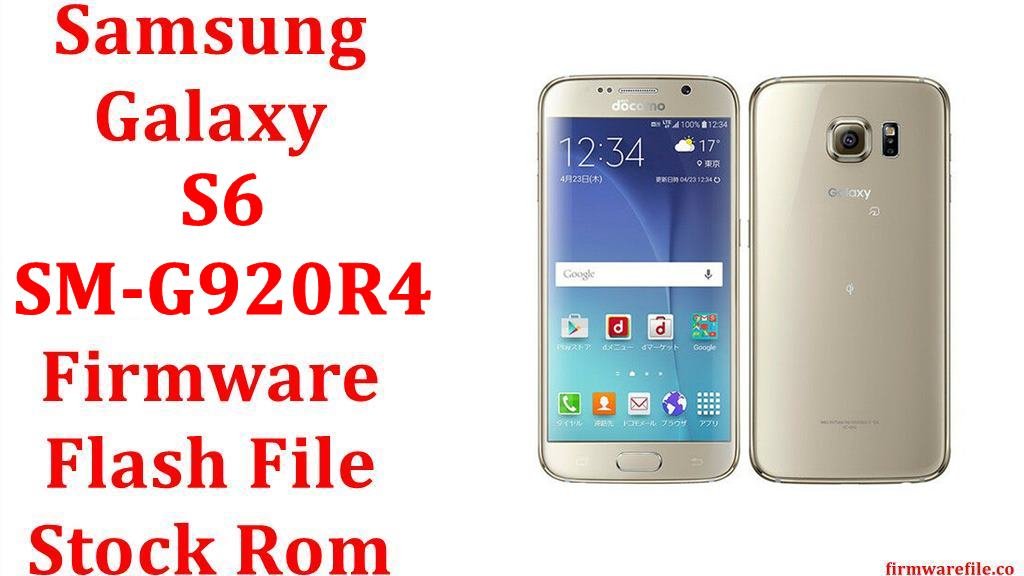
Samsung Galaxy S6 (SM-G920R4) Firmware Flash File (US Cellular)
The Samsung Galaxy S6 (SM-G920R4) is the US Cellular variant of Samsung’s flagship from 2015. It marked a significant design shift for the company, introducing a premium glass-and-metal build and a stunning 5.1-inch Quad HD Super AMOLED display. Powered by the capable Exynos 7420 Octa chipset, it was a top performer in its day. However, over the years, many users have encountered software-related issues, most notably severe battery drain after major Android updates, a decline in performance leading to lag, and an increasingly unreliable fingerprint scanner. Reinstalling the official stock firmware using the Odin tool is the most effective way to resolve these problems and restore the Galaxy S6 to its original performance.
⚠️ CRUCIAL WARNING: Downgrading and Samsung Knox
Downgrading your firmware from a newer version (e.g., Android 7.0) to an older one (e.g., Android 6.0.1) is highly risky. If the bootloader was updated with the newer firmware, a downgrade attempt will fail in Odin and could potentially brick your device. Proceed with downgrading at your own risk. Flashing official firmware of the same or a newer version will not trip the Knox security counter. This process will erase all your personal data.
⚠️ Prerequisites: Before You Begin
Click Here for the Essential Pre-Flashing Checklist
- Backup Your Data: All your personal files, photos, and contacts on the internal storage will be permanently deleted. Use Samsung Smart Switch to back up your data to a PC.
- Charge The Battery: To prevent the phone from shutting down during the flashing process, ensure the battery is charged to at least 50%.
- Windows PC & USB Cable: You will need a Windows computer, the original Samsung USB cable, and the necessary drivers.
📱 Quick Device Specifications
- Device
- Samsung Galaxy S6 (US Cellular)
- Model Number
- SM-G920R4
- Chipset
- Exynos 7420 Octa
- Display
- 5.1″ Quad HD Super AMOLED (2560×1440)
- Operating System
- Android 6.0.1 Marshmallow / 7.0 Nougat
- RAM
- 3GB
- Storage
- 32GB / 64GB / 128GB
- Battery
- 2550 mAh
🛠 Required Tools & Downloads
| File / Tool | Download Link |
|---|---|
| Odin Flashing Tool | Download Odin |
| Samsung USB Drivers | Download Drivers |
⬇️ Samsung Galaxy S6 (SM-G920R4) Stock ROM / Firmware
| Android Version | Build Number | Download Link(s) |
|---|---|---|
| 7.0 Nougat | DRI1 | Google Drive / AndroidFileHost |
| 6.0.1 Marshmallow | CPL1 | Google Drive |
| 6.0.1 Marshmallow | CPF5 | Google Drive |
⚡ Quick Flashing Guide
- Download and install the Samsung USB Drivers. Extract the Odin tool and your chosen firmware file (e.g.,
G920R4TYU4DRI1_...zip). The firmware will extract into a.tar.md5file. - Reboot your Galaxy S6 into Download Mode: power it off completely, then press and hold the Power + Home + Volume Down buttons simultaneously. Press Volume Up to continue.
- Launch
Odin3.exeas an administrator. Connect your phone to the PC. The ID:COM box in Odin should turn blue. - Click the AP button in Odin and select the firmware file with the
.tar.md5extension. (For older multi-file firmwares, load BL, AP, CP, and CSC files into their respective slots). - Ensure “Re-Partition” is NOT checked. Click the Start button and wait for the process to complete. The phone will reboot automatically after the “PASS!” message.
For a more detailed, step-by-step guide with screenshots, please refer to our main tutorial:
👉 Full Tutorial: How To Flash Samsung Galaxy Smartphones With Odin
❓ Frequently Asked Questions (FAQs)
- Q1. My Galaxy S6 battery drains extremely fast after the Android 7.0 update. Will flashing firmware fix this?
- Yes, this is a very common issue. Flashing the stock firmware, especially the Android 7.0 build, performs a clean installation that often resolves the battery drain bugs introduced during the OTA update process. After flashing, it is also wise to wipe the cache partition from recovery mode for best results.
- Q2. Can I downgrade from Android 7.0 to 6.0.1 because I don’t like the new version?
- As stated in the warning, this is very risky. If the Android 7.0 update included a new bootloader, attempting to flash an older Android 6.0.1 firmware will most likely result in a “FAIL!” message in Odin, specifically at the bootloader (sboot.bin) or modem stage, and can potentially brick the device.
- Q3. My fingerprint scanner has become slow and often fails to recognize my finger. Can this be fixed?
- A clean firmware installation often fixes software-related issues with the fingerprint scanner. The process restores the original drivers and calibration. If the issue persists after flashing, it is likely a hardware problem from wear and tear on the physical sensor.
🔧 Device Troubleshooting
- Odin is stuck on “SetupConnection,” “File analysis,” or “NAND Write Start”: This indicates a connection or driver problem. Try using a different USB port (a main port on the back of the PC), a different original Samsung cable, and reinstalling the Samsung USB drivers.
- Odin shows a “FAIL!” message in red: This can be due to several reasons. The most common is trying to flash an incompatible firmware (like a downgrade with a new bootloader) or using a corrupted firmware file. Re-download the firmware and ensure it’s specifically for the SM-G920R4 model.
- The phone is stuck in a bootloop (on the Samsung logo) after a successful flash: This usually means there’s a conflict with old data. You need to perform a factory reset. Boot into recovery mode (Power + Home + Volume Up), then use the volume keys to select “Wipe data/factory reset” and “Wipe cache partition.” Then reboot.