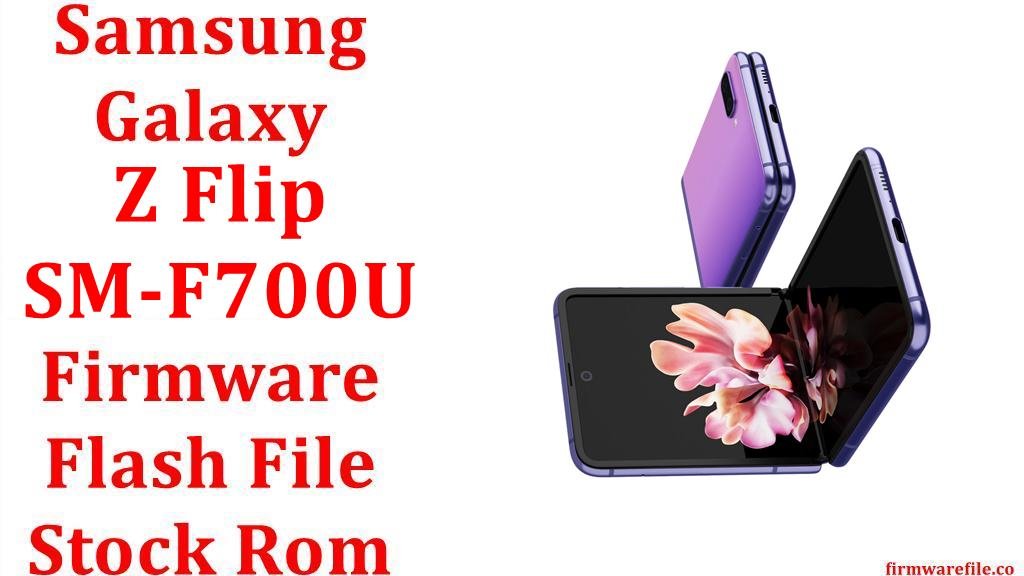
The Samsung Galaxy Z Flip (SM-F700U / SM-F700U1) was a landmark device, marking Samsung’s first clamshell foldable smartphone. With its innovative design, compact form factor, and capable Snapdragon 855+ chipset, it brought a new level of portability to the flagship space. The device launched with Android 10 and received updates up to Android 13. However, major OS updates sometimes introduced bugs, with users reporting issues like decreased battery life, performance lag, and app instability. For users looking to perform a clean installation, downgrade to a previous Android version, or restore a bricked device, flashing the official stock firmware with Odin is the definitive solution.
⚠️ CRUCIAL WARNING: Downgrading Bootloader is Prohibited
Samsung devices have a bootloader version counter (the number after U, S, or T in the build number, e.g., F700USQ**S8**…). You cannot flash a firmware with a lower bootloader version than what is currently on your device (e.g., flashing a bootloader `5` firmware on a device running bootloader `8`). Doing so will cause the flash to fail in Odin and can potentially brick your phone. This process will also erase all your personal data.
⚠️ Prerequisites: Before You Begin
Click Here for the Essential Pre-Flashing Checklist
- Backup Your Data: This process will wipe everything. Use Samsung Smart Switch to back up your data to a PC.
- Charge The Battery: Ensure your phone has at least a 60% charge to prevent shutdowns.
- Windows PC & USB Cable: You will need a Windows computer and the original Samsung USB cable.
📱 Quick Device Specifications
- Device
- Samsung Galaxy Z Flip
- Model
- SM-F700U (Carrier Locked) / SM-F700U1 (Factory Unlocked)
- Chipset
- Qualcomm Snapdragon 855+
- Display
- 6.7″ FHD+ Foldable Dynamic AMOLED
- Operating System
- Android 10 / 12 / 13
- RAM
- 8GB
- Storage
- 256GB
- Battery
- 3300 mAh
🛠 Required Tools & Downloads
⬇️ Samsung Galaxy Z Flip (SM-F700U/U1) Stock ROM / Firmware
AT&T (SM-F700U)
| Android Version |
Filename |
Release Date |
Size |
Download Link |
| 13 |
F700USQS8JXA2.zip |
2024-01-02 |
~6.5 GB |
Download (SamFW) |
Sprint (SM-F700U)
| Android Version |
Filename |
Release Date |
Size |
Download Link |
| 13 |
F700USQU8JWI2_…_SPR.zip |
2023-09-18 |
~6.5 GB |
Download (Google Drive) |
U.S. Unlocked (SM-F700U1)
Quick Steps to Flash Samsung Galaxy Z Flip Firmware
- Download and install the Samsung USB Drivers. Extract the Odin tool and your chosen firmware file.
- Reboot your Galaxy Z Flip into Download Mode: power it off, then press and hold Power + Volume Down buttons and connect it to the PC. Press Volume Up to continue.
- Launch Odin. The ID:COM box should turn blue.
- Load the firmware files: click AP and select the file starting with `AP_`, BL for `BL_`, CP for `CP_`, and CSC for the `CSC_` file (use `HOME_CSC` if you want to try and keep your data).
- Ensure “Re-Partition” is NOT checked. Click Start and wait for the “PASS!” message. The phone will reboot automatically.
For a more detailed, step-by-step guide with screenshots, please refer to our main tutorial:
👉 Full Tutorial: How To Flash Samsung Galaxy Smartphones With Odin
❓ Frequently Asked Questions (FAQs)
- Q1. My battery life got worse after the Android 13 update. Can I downgrade?
- You can only downgrade if you can find a firmware with the **same or higher bootloader version**. For example, you cannot flash the Android 12 firmware (bootloader 5) if your phone is on an Android 13 build with bootloader 8. A clean flash of the latest firmware can often fix battery drain issues anyway.
- Q2. What is the difference between CSC and HOME_CSC?
- Using the `CSC_` file will perform a full factory reset and wipe all your data. Using the `HOME_CSC_` file will attempt to preserve your data. If you are flashing to fix bugs, it is always recommended to use the regular `CSC_` file for a clean installation.
- Q3. Can I flash the unlocked (U1) firmware on my carrier (U) phone to remove bloatware?
- Yes, this is a common practice known as cross-flashing. You can flash the U1 (XAA) firmware onto a carrier-locked U model. This will remove all carrier bloatware and branding. However, it can sometimes affect carrier-specific features like Wi-Fi Calling and is an advanced procedure.
🔧 Device Troubleshooting
- Odin shows a “FAIL!” message in red: This is most commonly caused by trying to flash a firmware with a lower bootloader version. It can also be due to a bad USB cable, incorrect drivers, or using a faulty USB port. Always use a main port on the back of your PC.
- The phone is stuck in a bootloop after a successful flash: This usually means there’s a conflict with old data (especially if you used `HOME_CSC`). You need to perform a factory reset. Boot into recovery mode (Power + Volume Up), then use the volume keys to select “Wipe data/factory reset.”
- My phone screen is cracked at the crease. Will a software flash fix it?No. Screen damage, especially at the hinge, is a physical hardware issue with the delicate folding display. No software update or firmware flash can repair a cracked screen.