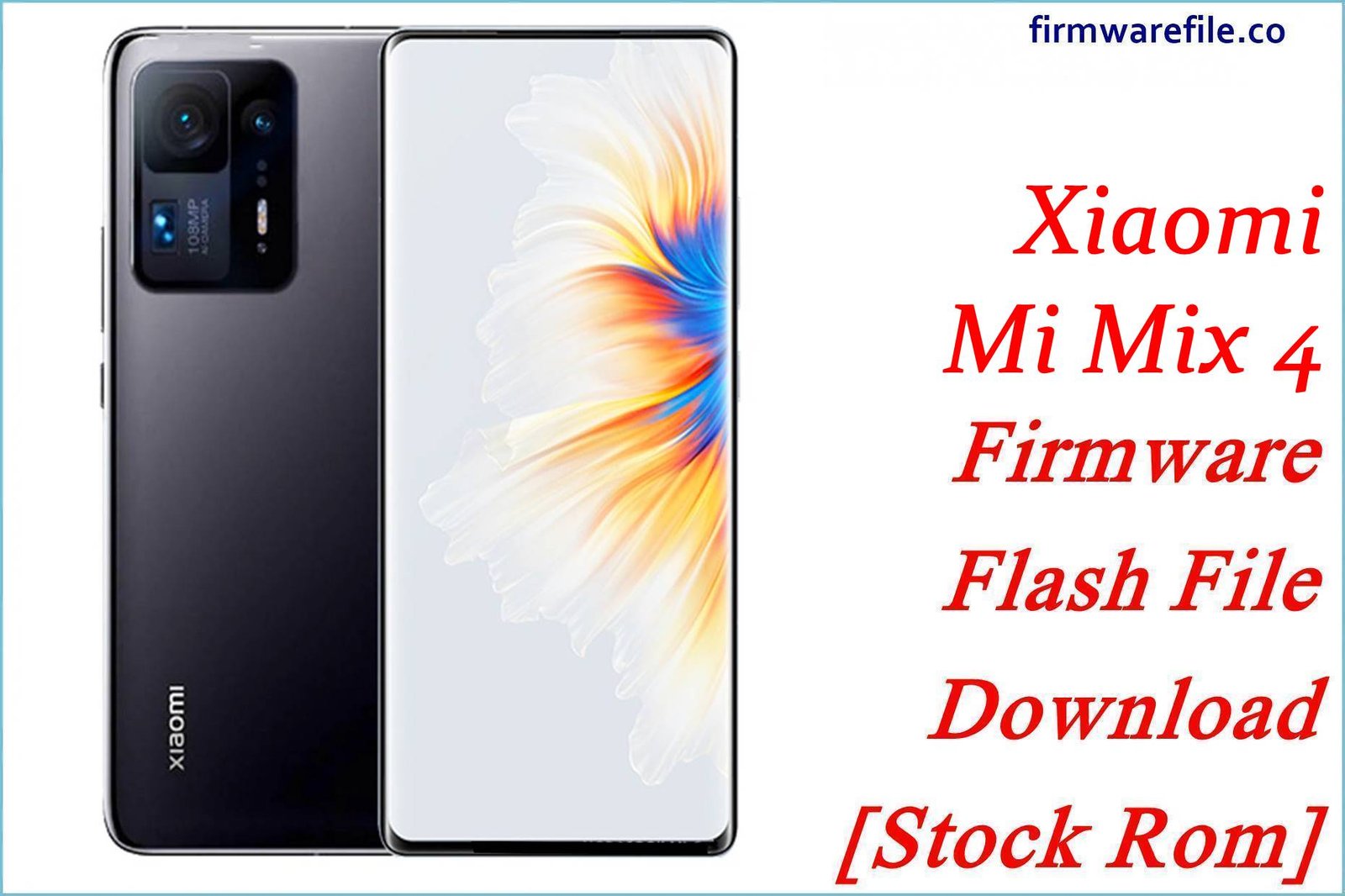
Xiaomi Mi 8 Explorer (ursa) Firmware Flash File Download [Stock Rom]
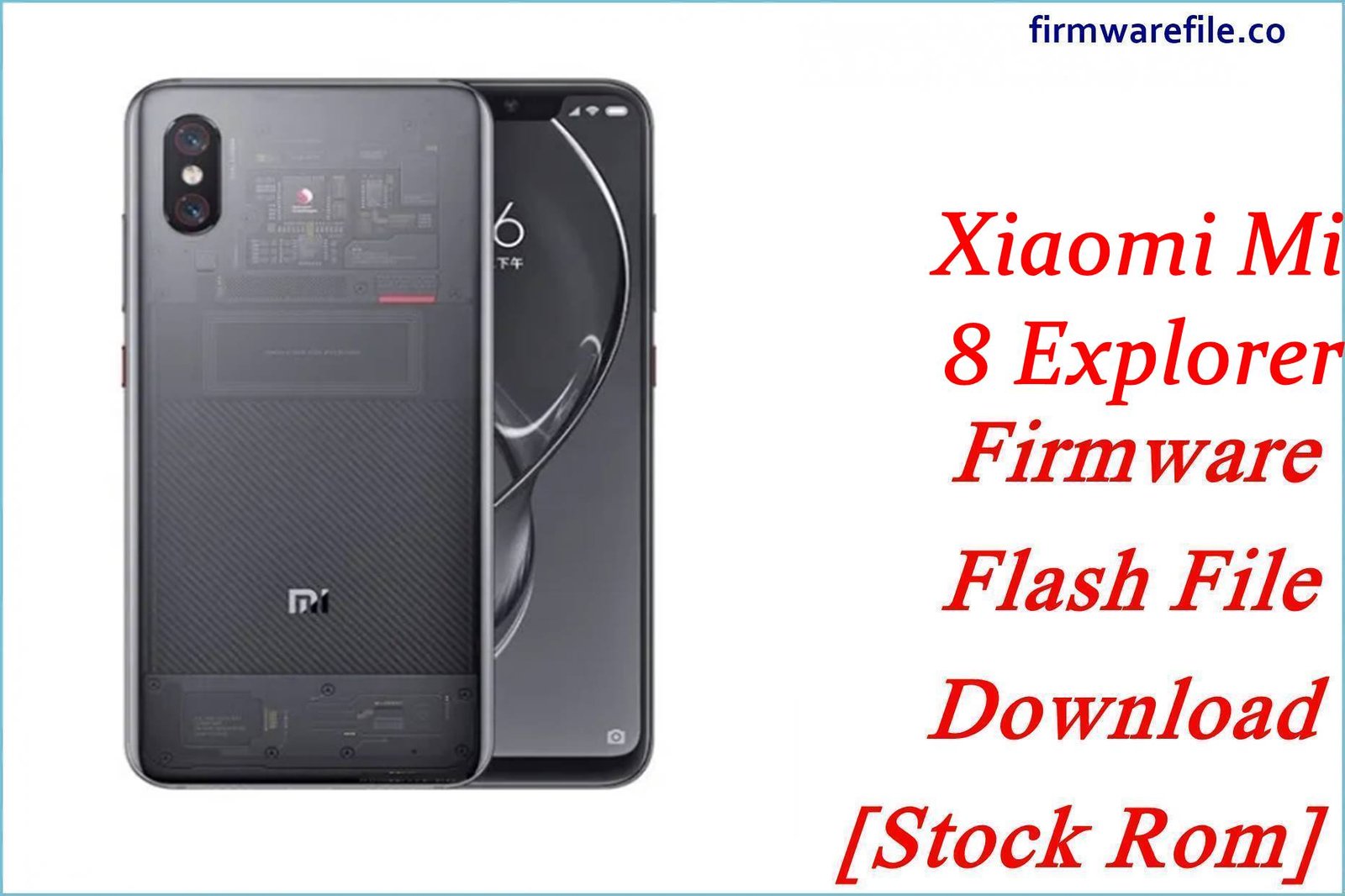
The Mi 8 Explorer Edition (codenamed ursa) was Xiaomi’s special edition flagship featuring a transparent glass back, under-display fingerprint scanner, and 3D face unlock. If your device is experiencing fingerprint reader failures, face unlock issues, or software instability, this guide provides the official MIUI fastboot ROM and custom recovery needed for complete system restoration.
Important Notice: Verify your device codename is ursa before flashing. The Mi 8 Explorer Edition has unique hardware components including pressure-sensitive in-display fingerprint scanner and transparent back design. Flashing incorrect firmware will result in a non-functional device.
Quick Device Specifications
- Device: Mi 8 Explorer Edition (ursa)
- Release Year: 2018
- Chipset: Qualcomm Snapdragon 845 (10nm)
- Display: 6.21″ AMOLED, 1080 × 2248 pixels (18.7:9)
- Camera: 12MP + 12MP dual rear, 20MP front camera
- Battery: 3000 mAh with Quick Charge 4.0+
- Security: Under-display fingerprint, 3D face unlock
- Special Feature: Transparent glass back showing internal components
- Original OS: Android 8.1 Oreo, MIUI 9
Essential Downloads & Tools
| File / Tool | Download Link |
|---|---|
| Xiaomi Mi Flash Tool | Download Stable Version |
| Qualcomm USB Drivers | Download Latest Drivers |
| TWRP Recovery | TWRP 3.3.1 for ursa |
| Mi Unlock Tool | Bootloader Unlock |
Official Firmware Collection
| Region / Variant | Build Version | Android | Release Date | Download Link |
|---|---|---|---|---|
| China Stable Fastboot | V12.5.3.0.QEHCNXM | 10.0 | 2021-10-28 | Download |
| Xiaomi.eu Custom ROM | V12.5.3.0.QEHCNXM (Based) | 10.0 | — | Download |
| TWRP Recovery | 3.3.1-1002 | 10.0 | — | Download |
Flashing Guide for Mi 8 Explorer Edition
Method 1: Fastboot Flashing (Official)
- Driver Installation: Install Qualcomm USB drivers on your computer.
- Bootloader Unlock: Unlock bootloader using Mi Unlock Tool (requires waiting period).
- Enter Fastboot Mode: Power off device, then hold Volume Down + Power buttons.
- Flash Process:
- Extract the .tgz file to access firmware folder
- Open Mi Flash Tool and browse to extracted folder
- Select “Clean All” option for fresh installation
- Click “Flash” and wait for completion (5-8 minutes)
- Calibrate Sensors: After first boot, calibrate fingerprint and face unlock in settings.
Method 2: TWRP Recovery (Custom)
- Flash TWRP: Fastboot flash recovery twrp.img
- Boot to TWRP: Hold Volume Up + Power during boot
- Install Custom ROM: Flash Xiaomi.eu zip from storage
- Wipe Data: Format data for clean installation
- Flash Additional ZIPs: May need to flash Disable_Dm-Verity_ForceEncrypt for proper boot
Frequently Asked Questions (FAQs)
Q1. Why is my under-display fingerprint scanner not working properly?
The pressure-sensitive fingerprint sensor requires specific calibration. Flash the stock ROM and perform fingerprint calibration through the hardware test menu (##6484## → Fingerprint Test).
Q2. Can I upgrade to Android 11 on Mi 8 Explorer Edition?
No, Android 10 was the final official Android version. However, there are custom ROMs like Pixel Experience and LineageOS 18.1 (Android 11) available through TWRP.
Q3. Why does my 3D face unlock fail after flashing?
The 3D facial recognition system requires specific persist data. Always backup your persist partition before flashing. If face unlock fails, you may need to restore original persist data.
Q4. Is the transparent back affected by software changes?
The transparent back is physical, but software can affect how the underlying components are displayed and managed. Use stock ROM for optimal compatibility with the unique hardware.
Device-Specific Troubleshooting
- Fingerprint Issues: Recalibrate through hardware test menu. Ensure screen protector is compatible with under-display sensor.
- Face Unlock Failure: Backup persist partition before any modifications. Restore original persist if face unlock stops working.
- Battery Life: The 3000mAh battery may need calibration after flashing. Use battery calibration apps or full charge-discharge cycles.
- Performance Optimization: The Snapdragon 845 still performs well. Use Game Turbo for enhanced gaming performance.
TWRP Installation Guide
- Unlock bootloader officially through Mi Unlock
- Boot to fastboot mode: Power off → Volume Down + Power
- Flash TWRP:
fastboot flash recovery twrp.img - Boot to TWRP:
fastboot boot twrp.img - Format Data: Wipe → Format Data → type “yes”
- Flash custom ROMs and additional patches as needed
Critical: Always backup persist, modem, and EFS partitions before flashing custom ROMs to avoid losing fingerprint and face unlock functionality.
Warning & Special Considerations
Persist Partition: This device’s advanced biometric features rely on the persist partition. Never wipe or modify this partition without backup.
Hardware Specificity: The transparent back and specialized sensors require specific firmware. Avoid generic Mi 8 ROMs.
Security Features: The 3D face unlock and under-display fingerprint are hardware-specific features that may not work with custom ROMs.