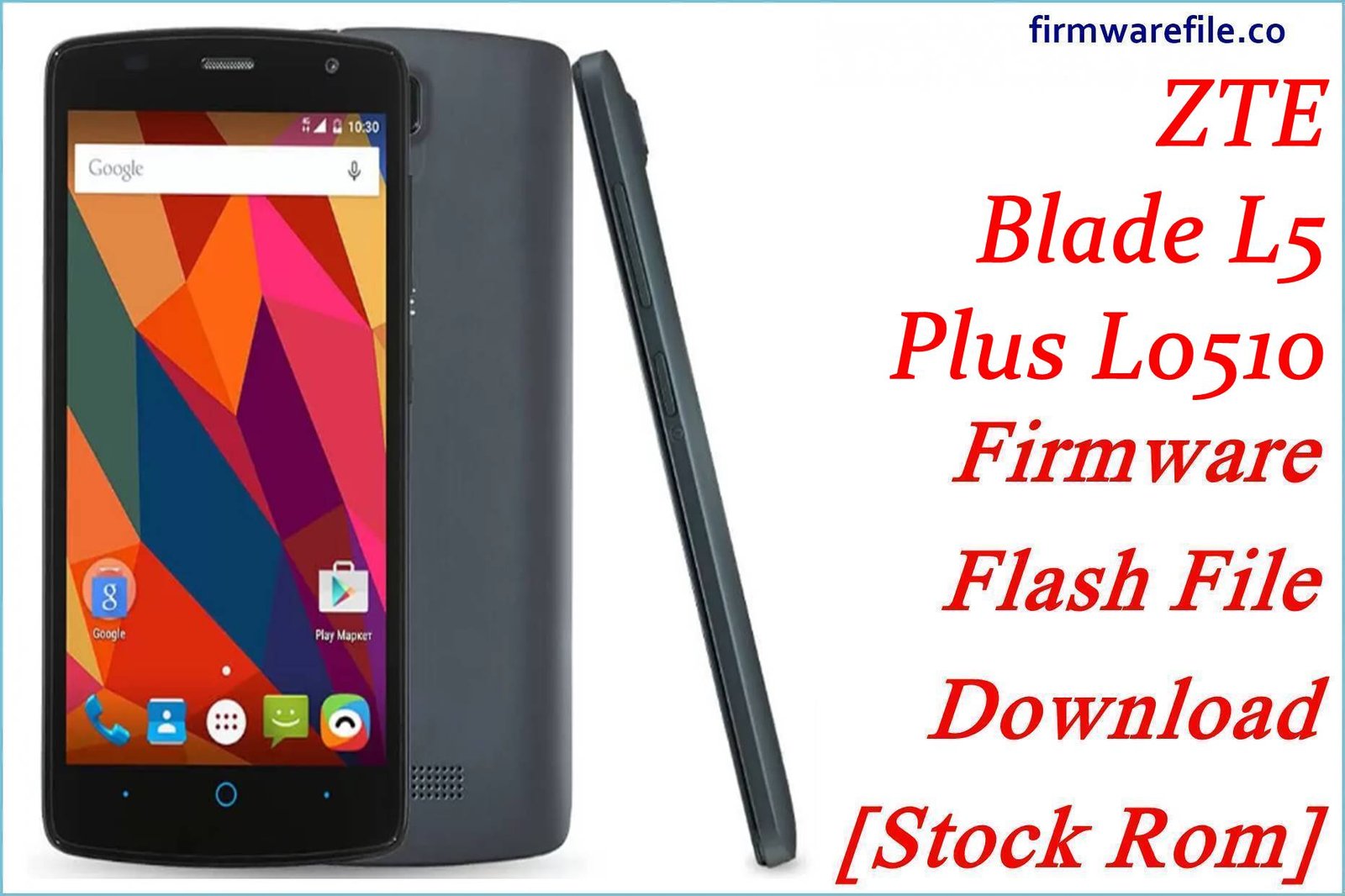
ZTE Blade L5 Plus (T320 / L0510) Firmware Flash File Download [Stock Rom]
The ZTE Blade L5 Plus (models T320, L0510) is a basic, entry-level 3G smartphone from 2016. For owners of this older device, flashing the official stock firmware is the best way to resolve deep software corruption, fix a device stuck in a bootloop, or restore it to its original factory condition.
Important Note: This device is powered by a MediaTek MT6580 chipset. The restoration process requires the use of SP Flash Tool. Please ensure you download the firmware that corresponds to your specific model variant.
Quick Device Specs
- Device
- ZTE Blade L5 Plus (T320 / L0510)
- Release year
- 2016
- Chipset
- MediaTek MT6580
- Display
- 5.0″ HD IPS LCD (1280×720)
- Battery
- 2150 mAh (Removable)
- Memory
- 1GB RAM + 8GB storage
- Camera
- 8MP rear, 2MP front
- OS
- Android 5.1 (Lollipop) / 6.0 (Marshmallow)
Required Downloads
| File / Tool | Download Link |
|---|---|
| SP Flash Tool | Download Tool |
| MediaTek USB VCOM Drivers | Download Drivers |
Stock ROM & Firmware
Please choose the firmware that matches your device’s specific model variant (T320 or L0510). Flashing the wrong variant’s firmware may cause issues.
| Version / Model | Android | Region | Type | Download | Size |
|---|---|---|---|---|---|
| (2017-12-22) / L0510 | 6.0 (Marshmallow) | Global | SP Flash Tool | Download | ~950 MB |
| V1.0.0B16 / T320 | 5.1 (Lollipop) | Russia (RUS) | SP Flash Tool | Download | ~950 MB |
Quick Flashing Guide
- Download and install the MediaTek VCOM drivers and the SP Flash Tool on your computer.
- Extract your chosen firmware ZIP file to find the `MT6580_Android_scatter.txt` file.
- Launch SP Flash Tool, load the scatter file, and ensure the flashing mode is set to “Download Only.”
- Power off your phone, remove the battery, click the “Download” button in the tool, and then connect the phone to your PC via USB to begin.
For a complete, step-by-step tutorial with screenshots, please refer to our definitive guide:
How to Flash Stock Firmware on MediaTek (MTK) Smartphones
FAQs
Q1. What is the difference between the T320 and L0510 models?
They are regional variants of the same ZTE Blade L5 Plus. The core hardware is the same, but they were released for different markets (e.g., Russia vs. Global/Latin America) and may have different pre-loaded apps or network band configurations. It’s always best to flash the firmware that matches your model number.
Q2. Can I install modern apps on this phone?
Due to the 1GB of RAM and old Android OS (Lollipop/Marshmallow), most modern apps from the Play Store will not run well, if at all. This phone is best suited for basic tasks and “Lite” versions of apps. A firmware flash restores the original system but does not upgrade its capabilities.
Q3. How can I manage the extremely limited 8GB of storage?
The 8GB of storage is the biggest bottleneck. It is essential to use a microSD card. The Marshmallow firmware supports “Adoptable Storage,” which allows you to format an SD card to act as internal memory. You can set this up in `Settings > Storage & USB`.
Device-Specific Troubleshooting
- “Google Play Services has stopped” Error: This is a very common problem on older Android versions. After flashing, connect to Wi-Fi immediately and open the Play Store. Let it try to update Google Play Services. If it fails due to space, you must clear the cache (`Settings > Storage > Cached data`) or disable other pre-installed apps to make room.
- “Insufficient Storage” Error: Even with adoptable storage, the phone may struggle. After flashing, immediately go to `Settings > Apps` and disable any pre-installed bloatware to free up precious system space for essential app updates.
- Stuck on ZTE Logo (Bootloop): This is a common issue for the Blade L5 Plus. A full firmware flash with SP Flash Tool is the most reliable solution. After flashing, the first boot can be slow. If it’s still stuck after 15 minutes, boot into recovery (hold Volume Up + Power from off) and perform a “Wipe data/factory reset”.
- SP Flash Tool Doesn’t Detect the Phone: This is a driver issue. Reinstall the VCOM drivers (disabling driver signature enforcement in Windows first). The removable battery is your best tool: remove it, click “Download” in SP Flash Tool, then connect the phone without the battery. Once the red bar appears, you can re-insert it.