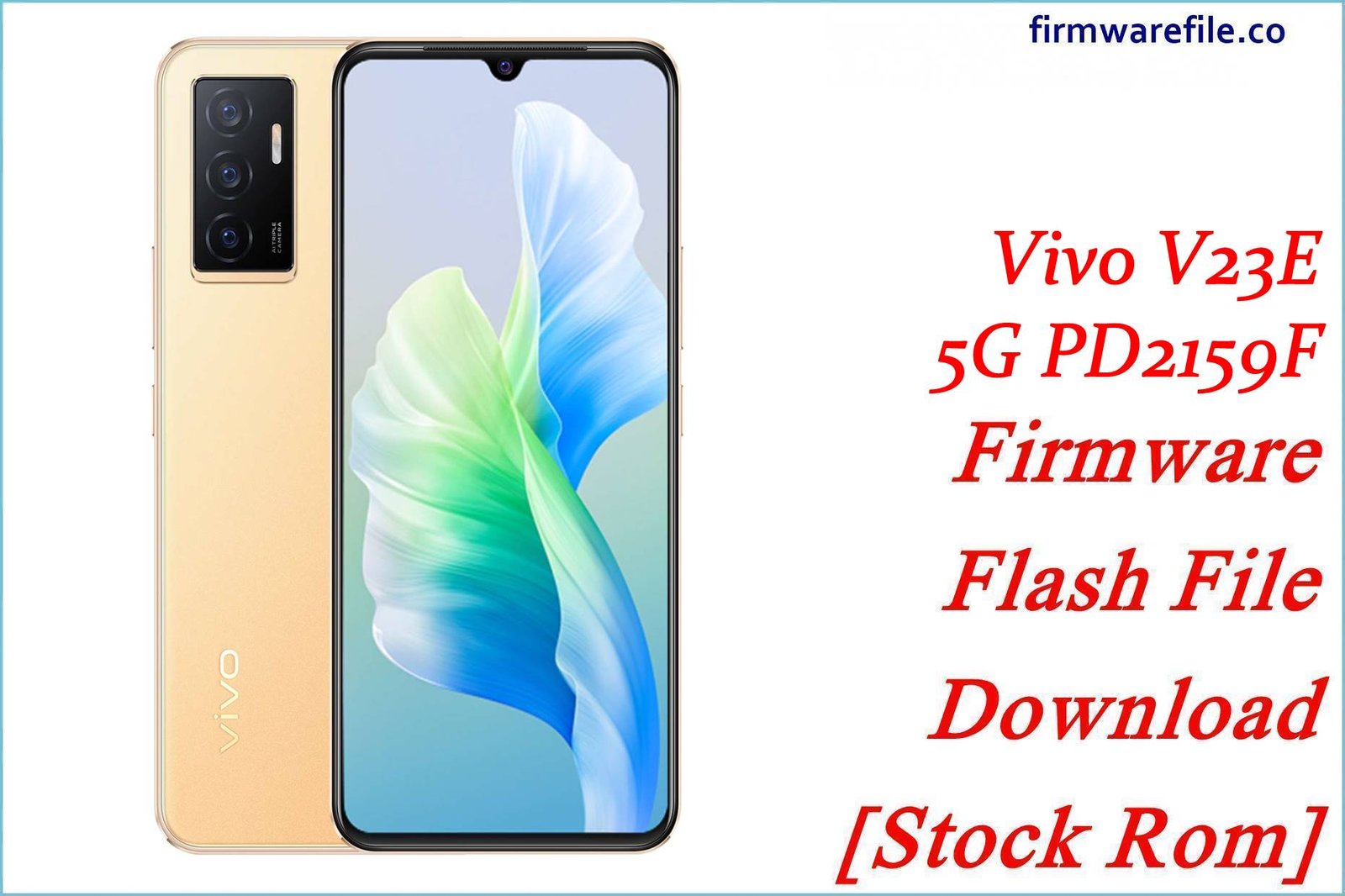
Vivo V23e 5G PD2159F Firmware Flash File Download [Stock Rom]
The Vivo V23e 5G (PD2159F) is a stylish mid-range smartphone from 2021, known for its powerful 44MP autofocus selfie camera, AMOLED display, and fast charging. It launched with Funtouch OS 12 (Android 11) and later received updates to Android 12. However, major OS updates can sometimes introduce bugs, such as faster battery drain, performance lag, or app instability. This guide provides a comprehensive collection of official firmware packages for both Android 11 and 12. These files are essential for users who need to unbrick a dead or bootlooping device, downgrade from Android 12 to 11, or resolve any persistent software issue with a clean installation.
⚠️ CRUCIAL WARNING: Secure Boot and Authentication Bypass Required
This device is powered by a MediaTek Dimensity 810 chipset with Secure Boot. A standard attempt to flash with SP Flash Tool will fail. You must use an MTK Auth Bypass Tool to disable security protections before you can flash the firmware. This procedure is for advanced users and will erase all your data.
⚠️ Prerequisites: Before You Begin
Click Here for the Essential Pre-Flashing Checklist
- Backup Your Data: This process will wipe all data. Back up everything if your phone is accessible.
- Charge The Battery: Ensure your phone has at least a 60% charge. If the phone is bricked, charge it for an hour before starting.
- Windows PC & USB Cable: You need a Windows PC and the original Vivo USB-C cable.
📱 Quick Device Specifications
- Device
- Vivo V23e 5G
- Model
- PD2159F
- Chipset
- MediaTek Dimensity 810 (MT6833)
- Display
- 6.44″ FHD+ AMOLED
- Operating System
- Funtouch OS 12 (Android 11/12)
- RAM
- 8GB
- Storage
- 128GB
- Battery
- 4050 mAh
🛠 Required Tools & Downloads
| File / Tool | Download Link |
|---|---|
| SP Flash Tool | Download Tool |
| MediaTek USB VCOM Drivers | Download Drivers |
| MTK Auth Bypass Tool | Download Tool |
⬇️ Vivo V23e 5G (PD2159F) Stock ROM / Firmware
Android 12 (Funtouch OS 12)
| Android Version | Filename | Release Date | Size | Download Link |
|---|---|---|---|---|
| 12 | PD2159F_EX_A_6.9.3…sp.zip | ~Mid 2022 | 7.0 GB | Download |
| 12 | PD2159F_EX_A_6.5.3…sp.gz | ~Early 2022 | 5.79 GB | Download |
| 12 | PD2159F_EX_A_6.4.16…sp.rar | ~Early 2022 | 4.68 GB | Download |
| 12 | PD2159F_…_3.13.3_041122.zip | 2022-11-04 | 5.47 GB | Download |
| 12 | PD2159F_EX_A_3.11.2…sp.zip | ~Late 2021 | 5.6 GB | Download |
Android 11 (Funtouch OS 12) Firmware (For Downgrade)
| Android Version | Filename | Release Date | Size | Download Link |
|---|---|---|---|---|
| 11 | PD2159F_EX_A_1.11.0…mt6833.zip | ~Late 2021 | 6.10 GB | Download |
| 11 | PD2159F_EX_A_1.7.1…mt6833.rar | ~Mid 2021 | 5.29 GB | Download |
Quick Steps to Flash Vivo V23e 5G Firmware
- Download and install the MediaTek VCOM drivers. Extract the firmware, SP Flash Tool, and MTK Auth Bypass Tool.
- Run the MTK Auth Bypass tool and click “Disable Auth”.
- Power off your phone, then press and hold both Volume Up + Volume Down buttons and connect it to the PC. The tool should show a “SUCCESS” message.
- Do not disconnect the phone. Launch
flash_tool.exe, load the scatter file from the firmware folder, ensure “Download Only” mode is selected, and click “Download”. - The flash will begin immediately. Disconnect the phone only after the green checkmark appears.
For more details on this advanced process, refer to our full guides:
- 👉 Full Tutorial: How to Use the MTK Auth Bypass Tool
- 👉 Full Tutorial: How to Flash with SP Flash Tool
❓ Frequently Asked Questions (FAQs)
- Q1. Why would I downgrade from Android 12 to Android 11?
- Some users find that major OS updates can introduce bugs, reduce battery life, or have UI changes they dislike. Downgrading to a stable Android 11 build allows you to return to a software version you find more reliable or preferable.
- Q2. What is the MTK Auth Bypass Tool and why is it mandatory for this phone?
- The Dimensity 810 chipset has a security feature called Secure Boot that prevents unauthorized flashing. The bypass tool is a necessary step to temporarily disable this protection, allowing SP Flash Tool to communicate with the device. Without it, the flash is guaranteed to fail.
- Q3. My in-display fingerprint sensor is slow after an update. Will flashing help?
- Yes, it often can. A full firmware reflash restores the original drivers and calibration software for the fingerprint sensor. After flashing, it is recommended to delete your old fingerprints and carefully re-register them for improved accuracy.
🔧 Device Troubleshooting
- The phone is not detected by the PC: This is a driver issue. Ensure the MediaTek VCOM drivers are properly installed (you may need to disable Windows Driver Signature Enforcement). Use a good quality USB-C cable and a main USB port on your PC.
- After flashing, the phone is stuck on the Vivo logo: The first boot after a flash or downgrade can take a very long time. If it is still stuck after 20 minutes, you must perform a factory reset. Boot into recovery mode (Power + Volume Up), and select “Wipe data.”