Xiaomi Pad 8 Pro (piano) China HyperOS 3 OS3.0.6.0.WPYCNXM – QFIL Recovery Flash Guide
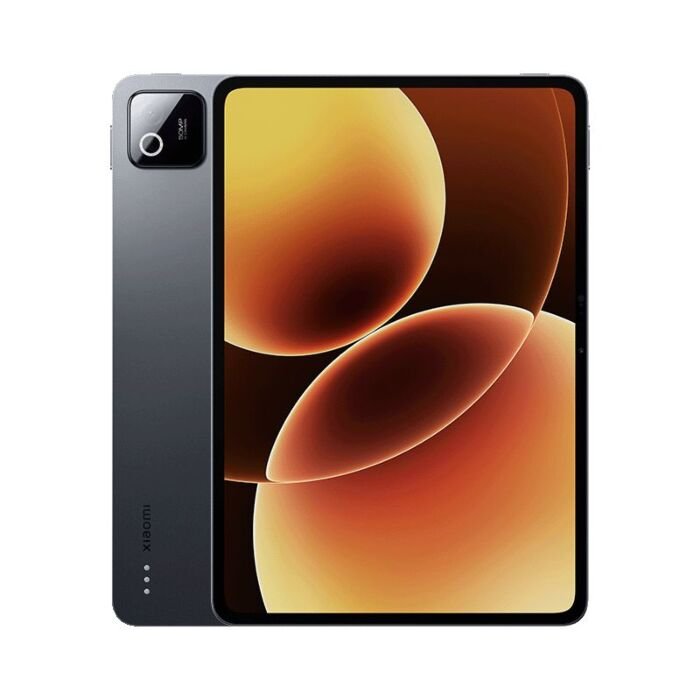
The Xiaomi Pad 8 Pro (codename: piano) was officially announced in September 2025 with a flagship-class Qualcomm Snapdragon 8 Elite processor, a stunning 11.2-inch 3.2K IPS LCD display at 144Hz refresh rate, and 9,200 mAh battery supporting 67W fast charging. Launched with HyperOS 3 based on Android 16, the Pad 8 Pro targets creative professionals, content consumers, and power users seeking a premium tablet experience. The China variant (WPYCNXM) is the exclusive stable firmware release for users in mainland China seeking the latest HyperOS 3 updates with regional optimizations and local service integration.
This firmware package addresses system stability, optimizes thermal management for the Snapdragon 8 Elite’s performance cores, and delivers refined touch responsiveness across the 144Hz display. If your device is stuck in a boot loop, refuses to power on, or exhibits software corruption, flashing the official firmware can restore it to factory condition and resolve persistent software-related issues that standard troubleshooting cannot fix.
Prerequisites: Before You Begin
Click Here for the Essential Pre-Flashing Checklist
- Backup Your Data: Flashing firmware will permanently erase all personal data, photos, videos, contacts, and app accounts stored in internal storage. Use cloud backup services or copy files to your PC before proceeding.
- Charge the Battery: Ensure the tablet’s battery is charged to at least 60% before flashing. Power interruption during the process can brick the device or damage critical system partitions.
- Windows PC & USB Cable: Flashing requires a Windows 10/11 computer with at least 15GB free storage space and the original Xiaomi USB Type-C data cable (third-party cables may cause connection issues).
- Extract Firmware Properly: The .tgz file must be extracted completely before flashing. Incomplete extraction leads to missing partition files and flashing failure.
- Stable Internet Connection: Download drivers and tools during the process if needed. A poor connection can corrupt file downloads.
Xiaomi Pad 8 Pro (piano) Firmware Details
- Device Name
- Xiaomi Pad 8 Pro (China)
- Model Number
- piano (internal codename); 25091RP04C (full model)
- Chipset
- Qualcomm SM8750-AB Snapdragon 8 Elite (3nm), octa-core (2×4.32 GHz Oryon V2 Phoenix L + 6×3.53 GHz Oryon V2 Phoenix M), Adreno 830 GPU @ 1100 MHz
- RAM & Storage
- 8GB / 12GB / 16GB LPDDR5X RAM; UFS 3.1 (128GB models) or UFS 4.1 (256GB and above)
- Display
- 11.2-inch IPS LCD, 2136 x 3200 pixels (3:2), 144Hz, HDR10, Dolby Vision, 800 nits peak, P3 wide color gamut
- Operating System
- HyperOS 3 based on Android 16
- Firmware Version
- OS3.0.6.0.WPYCNXM
- Build Date
- October 10, 2025
- Flashing Tool Required
- Xiaomi Flash Tool (fastboot method) or recovery-based flashing via Xiaomi Updater app
- File Type
- .tgz (compressed archive containing payload.bin and other image files)
- Battery
- 9,200 mAh Li-Polymer, non-removable; 67W USB Power Delivery charging
- Notable Hardware Features
- Dual stereo speakers with Dolby Atmos, side-mounted fingerprint sensor, IR blaster, WiFi 802.11 a/b/g/n/ac/6/7, Bluetooth 5.4, USB Type-C 3.2, no microSD slot
Common Issues This Firmware Resolves
Users in the China region have reported several software-related issues that this stable OS3.0.6.0.WPYCNXM firmware effectively resolves:
- Display and UI Glitches: Status bar color inversion when using light wallpapers, desktop wallpaper turning black unexpectedly, and desktop icons temporarily ghosting after app switching—all fixed in this stable build.
- System Stability Problems: Clipboard failing to close automatically after copying, face unlock not activating on the lock screen, and free-form window scaling bugs that previously affected multitasking workflows.
- Thermal Throttling Under Load: While Snapdragon 8 Elite handles heat better than previous generations, aggressive thermal throttling could trigger under 144Hz display usage and demanding apps. This firmware includes improved thermal management profiles.
- App Behavior Anomalies: WeChat background keep-alive function failures, application names missing in recent tasks, global search function jumping erratically, and other HyperOS-specific bugs documented by users.
- Boot Loops & Soft Bricks: Corrupted system files from interrupted updates or improper ROM installation can trap the device in endless restart cycles. Stock firmware re-flashing restores bootable system partitions.
Required Tools & Downloads
| Tool / Driver | Description | Download Link |
|---|---|---|
| Xiaomi Flash Tool | Official fastboot-based flashing utility for Xiaomi devices (supports payload.bin extraction) | Official Site |
| ADB & Fastboot Drivers | Android Debug Bridge and fastboot mode drivers; required for PC-to-device communication | Android SDK Platform Tools |
| Qualcomm USB Drivers | Device-specific USB drivers ensuring tablet detection in fastboot mode | Xiaomi Driver Pack |
| Payload Dumper | Utility to extract individual partition images (.img files) from payload.bin inside the .tgz archive | GitHub (Payload Dumper) |
Xiaomi Pad 8 Pro (piano) Stock ROM / Firmware Details
| Firmware Filename | piano_images_OS3.0.6.0.WPYCNXM_20251010.0000.00_16.0_cn_f3836404b0.tgz |
|---|---|
| Android Version | Android 16 (HyperOS 3) |
| Build Date | October 10, 2025 |
| Build Version | OS3.0.6.0.WPYCNXM |
| Build Number | f3836404b0 |
| File Type | .tgz compressed archive (contains payload.bin and flash scripts) |
| File Size | Approximately 10.53 GB |
| Region | China (CN) – Mainland only; optimized for local services and network bands |
| Download Source | Xiaomi Official OTA Server |
| MD5 / SHA Checksum | Verify using official release notes if available; always validate file integrity before flashing |
⚠️ CRUCIAL WARNING – China Firmware Region Lock:
This firmware (WPYCNXM) is exclusively for Xiaomi Pad 8 Pro units sold in mainland China and includes regional optimizations for Chinese networks and services (MIUI servers, local voice assistants, etc.). Flashing this China ROM onto a global, EU, or India variant will cause network incompatibilities, service authentication failures, and potential system instability. Verify your device’s original region before proceeding. Check the firmware version in Settings → About Tablet; if your current build does not contain “CN” in the version string, this firmware is incompatible.
Quick Flashing Guide
- Prepare the PC: Install Xiaomi Flash Tool, ADB/Fastboot drivers, and Qualcomm USB drivers. Extract the firmware file
piano_images_OS3.0.6.0.WPYCNXM_20251010.0000.00_16.0_cn_f3836404b0.tgzto a dedicated folder (e.g.,C:\Xiaomi_Flash\). Use Payload Dumper to extractpayload.binfrom the archive into individual partition images (.img files). - Enable Fastboot Mode: Power off the tablet completely. Hold the Volume Down button continuously, then press and hold the Power button for 10 seconds without releasing Volume Down. The tablet will reboot into Fastboot Mode (indicated by fastboot text on screen and minimal UI).
- Connect & Verify Detection: Connect the tablet to your Windows PC using the USB Type-C cable. Open Command Prompt in the extracted firmware directory and run
fastboot devicesto confirm the tablet is detected. You should see a device serial number listed. - Flash All Partitions: In the extracted firmware folder, locate and execute the flashing batch script (typically
flash_all.baton Windows). This script will automatically flash all required partition images (boot, system, vendor, recovery, etc.) to the tablet and perform a full wipe of user data. - Complete & Reboot: Wait for the flashing to finish (typically 5-10 minutes). Once you see confirmation on screen, disconnect the USB cable. The tablet will automatically reboot into the newly installed HyperOS 3 system. First boot may take 5-10 minutes; do not interrupt or force restart during this time.
For detailed, step-by-step instructions with screenshots and troubleshooting tips, refer to our comprehensive guide:
Full Tutorial: How to Flash Xiaomi Firmware with Xiaomi Flash Tool and Fastboot
Frequently Asked Questions (FAQs)
- Q1. Will flashing this China firmware remove Google Play Store and Google Apps from my Xiaomi Pad 8 Pro?
- The China firmware (WPYCNXM) does not include Google Play Store or Google Mobile Services by default, as these services are restricted in mainland China. Google Apps must be manually installed using Google Installer app or Gspace (a sandbox environment for Google services). If you need Google services, consider flashing the global or EU firmware instead. Note that flashing non-regional firmware may cause authentication and account synchronization issues.
- Q1. Does the Snapdragon 8 Elite on Xiaomi Pad 8 Pro experience thermal throttling issues, especially with the 144Hz display enabled?
- The Snapdragon 8 Elite (3nm) on the Pad 8 Pro has significantly improved thermal efficiency compared to previous-generation flagship processors. However, under sustained heavy load (gaming at 144Hz, video encoding, etc.) or extended outdoor use in sunlight, thermal throttling can activate. This firmware includes optimized thermal management profiles that balance performance and heat dissipation. If you experience excessive heat, disable 144Hz refresh rate in display settings, close background apps, use a tablet case for improved passive cooling, and avoid fast charging during gaming. Users report that enabling Battery Saver mode reduces peak SoC temperatures by 5-8°C under load.
- Q3. What should I do if my tablet gets stuck showing the Xiaomi logo during flashing and does not proceed?
- If the tablet hangs at the Xiaomi logo, the flashing process may have been interrupted due to a loose USB connection, driver incompatibility, or corrupted partition. Disconnect the USB cable immediately without powering off the tablet (wait 30 seconds), then reconnect and restart the flashing process. If the issue persists, reinstall Qualcomm USB drivers and ADB/Fastboot drivers, then retry. If the tablet cannot detect in fastboot mode after multiple attempts, you may need to perform a force-reboot by holding the Power button for 30 seconds, then re-enter Fastboot Mode and restart flashing. Do not remove the battery or attempt physical disassembly unless absolutely necessary.
Pro Tip: After successfully flashing and first boot, navigate to Settings → System → System Update → Additional Settings to verify the installed firmware version displays as OS3.0.6.0.WPYCNXM and build date as October 10, 2025. This confirms the flash was successful and no data corruption occurred.